 TimerDock
Start your first timer
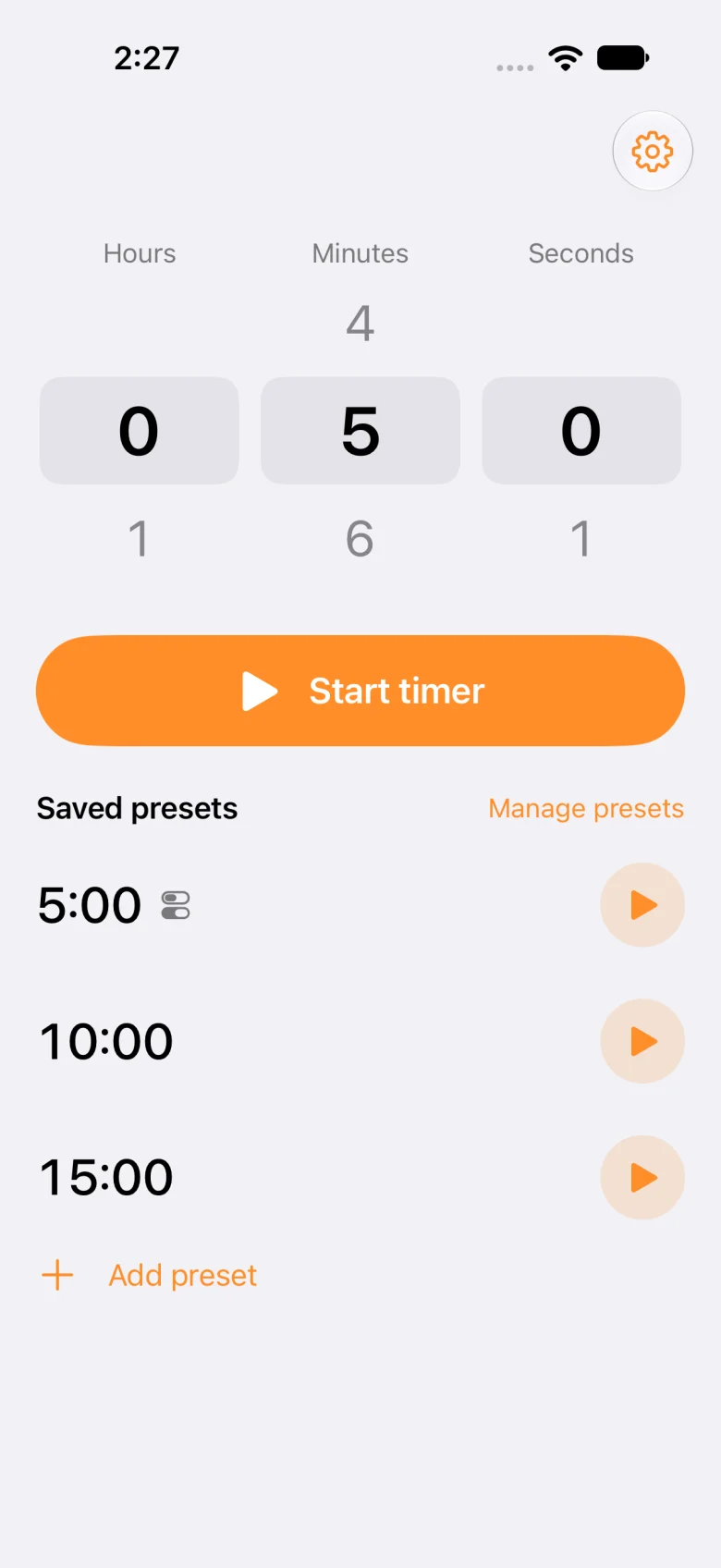
On the main screen, scroll the hours, minutes, and seconds columns to choose a duration.
- Choose between 1 second and 23 hours, 59 minutes, 59 seconds. You cannot start a zero-second timer.
- Tap Start. The first time you start a timer, review the iPhone alarm permission request and allow alarms.
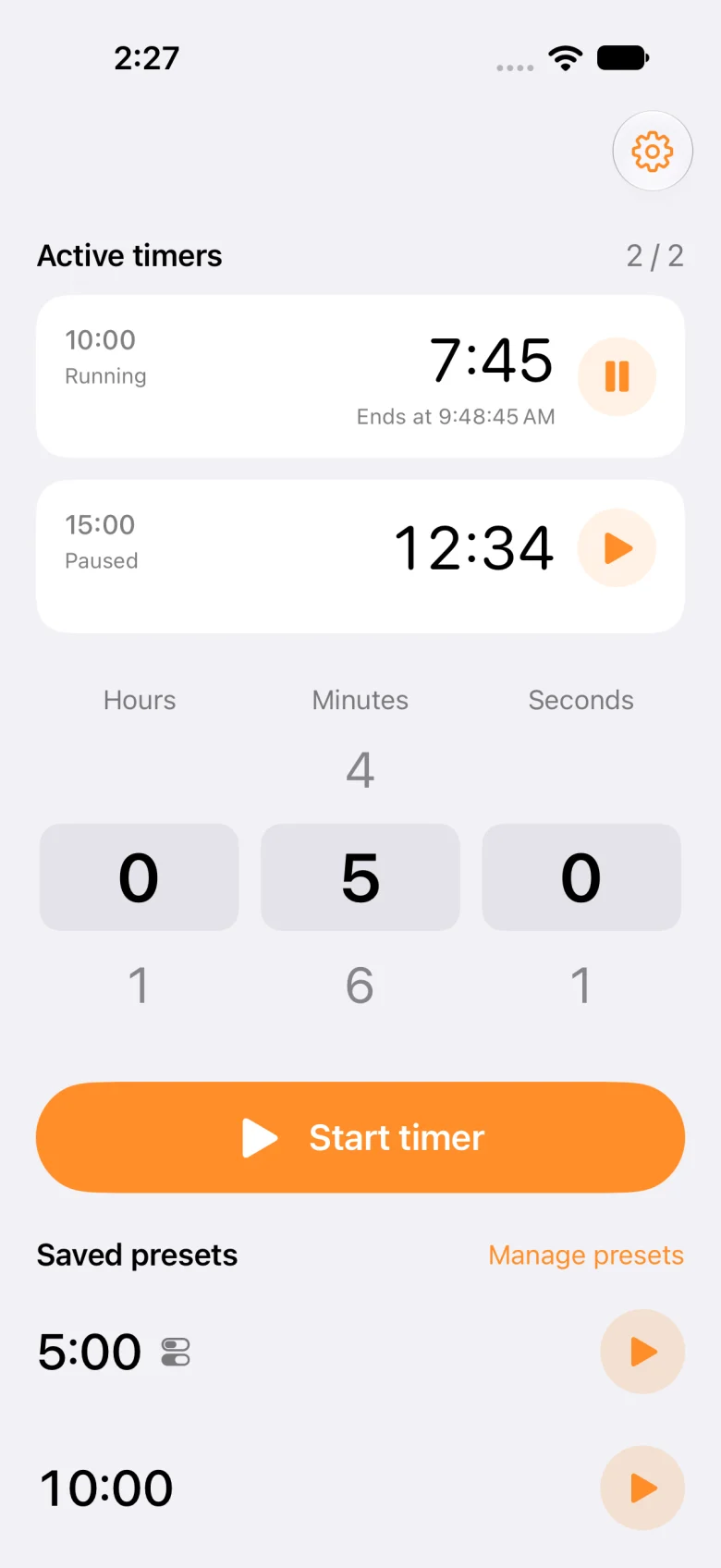
- Check the remaining time and finish time in the running list. Your last selected duration is remembered the next time you open the app.
Pause, resume, or cancel
Use the round button beside a timer’s remaining time to pause or resume that timer.
- Tap Pause to pause one timer.
- Tap Resume to continue from its remaining time.
- Swipe the timer row to the left, then tap Cancel. Swiping alone does not cancel a timer.
Save your everyday durations
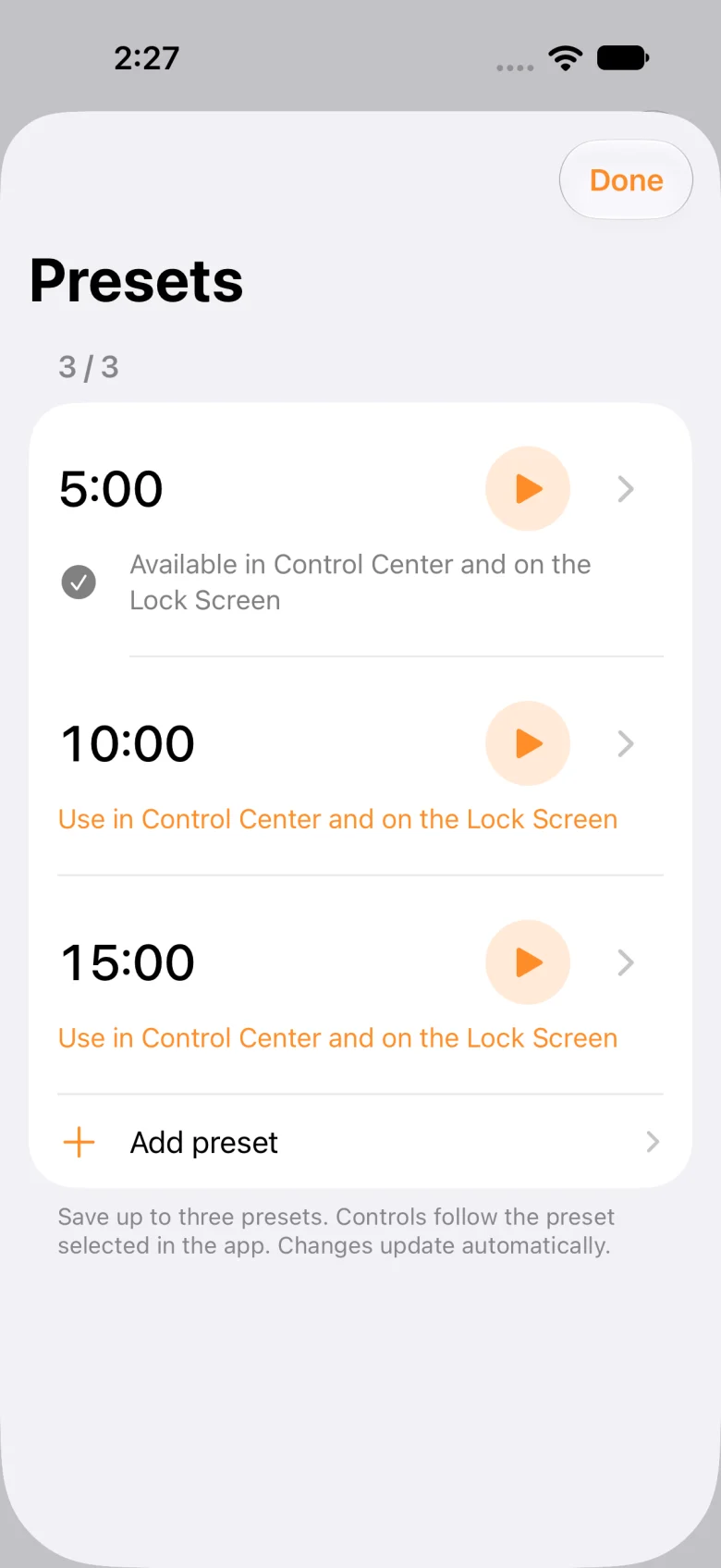
Tap Add Preset on the main screen to open the duration editor.
- Choose hours, minutes, and seconds, then save. The free version saves up to 3 presets.
- Tap the play button beside a saved preset to start a timer with that duration.
- In Manage Presets, tap a duration to edit it. Swipe a row to the left to delete it.
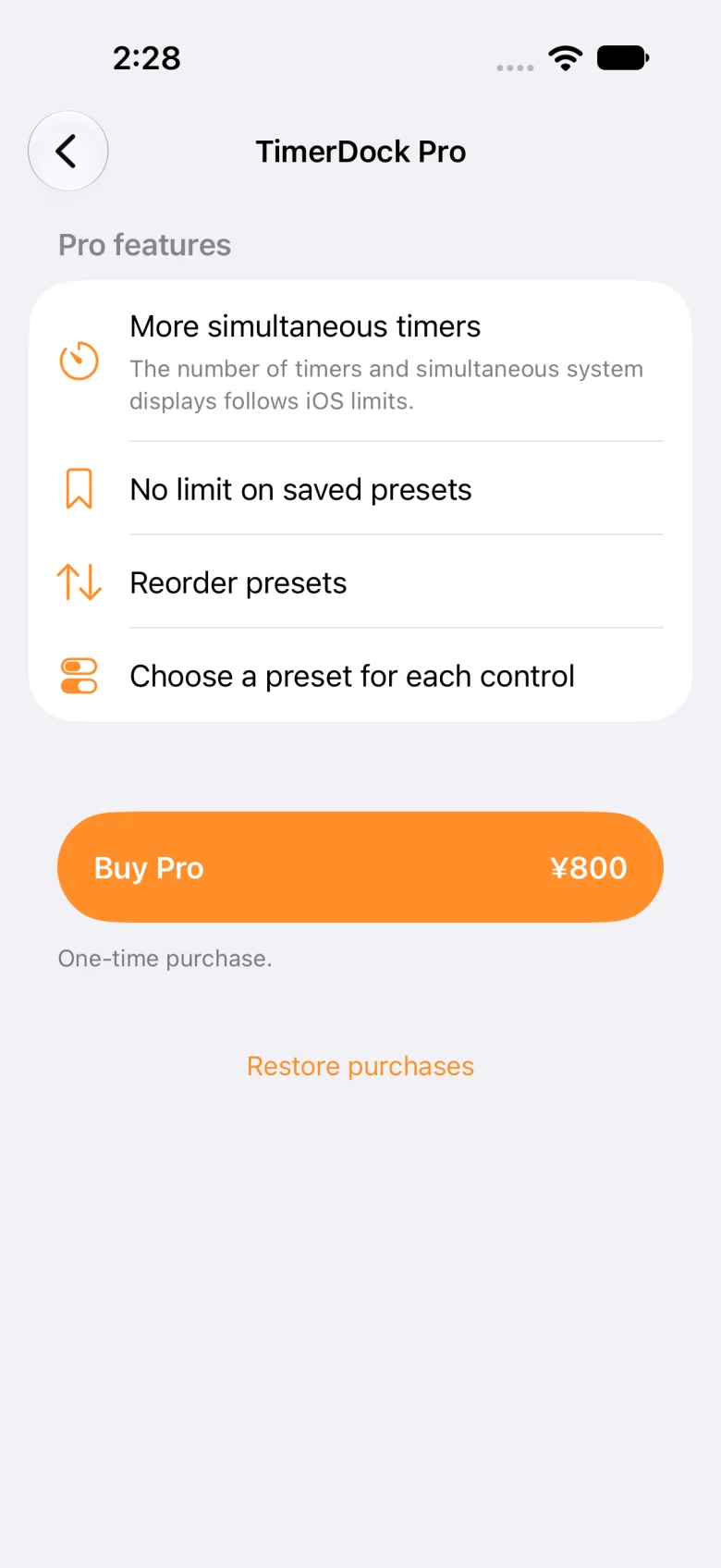
- Pro adds preset reordering and removes the app-imposed limit on saved presets.
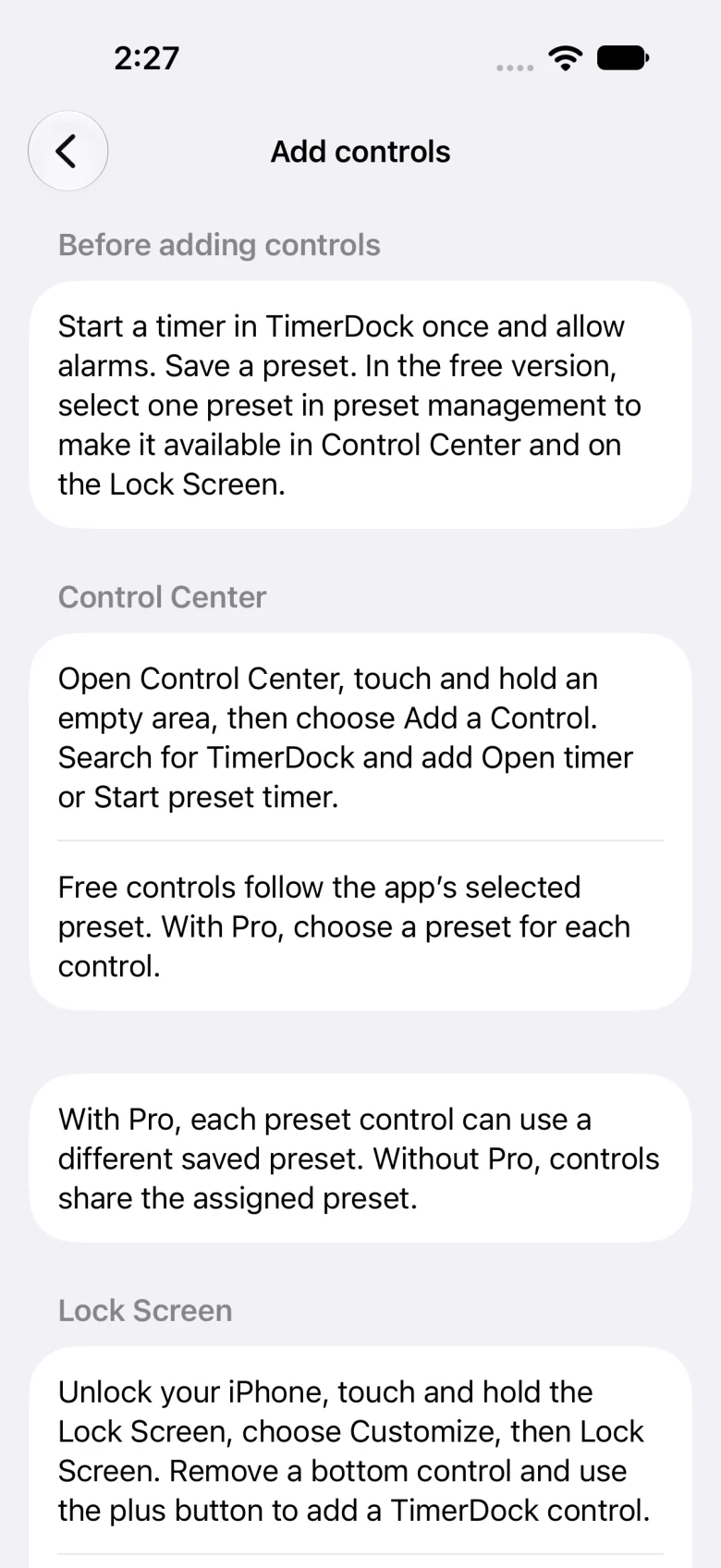
Use Control Center
Save a preset in the app first. In the free version, assign the preset you want your controls to use.
- Open Control Center, enter editing mode, and add a control. Search for TimerDock.
- Open Timer opens the duration picker. Start Preset starts a timer using a saved duration.
- In the free version, all preset-start controls use the same preset selected in the app. Changing that assignment updates your existing controls.
- With Pro, each control can use a different preset. Choose the preset in the control’s configuration.
Use the Lock Screen
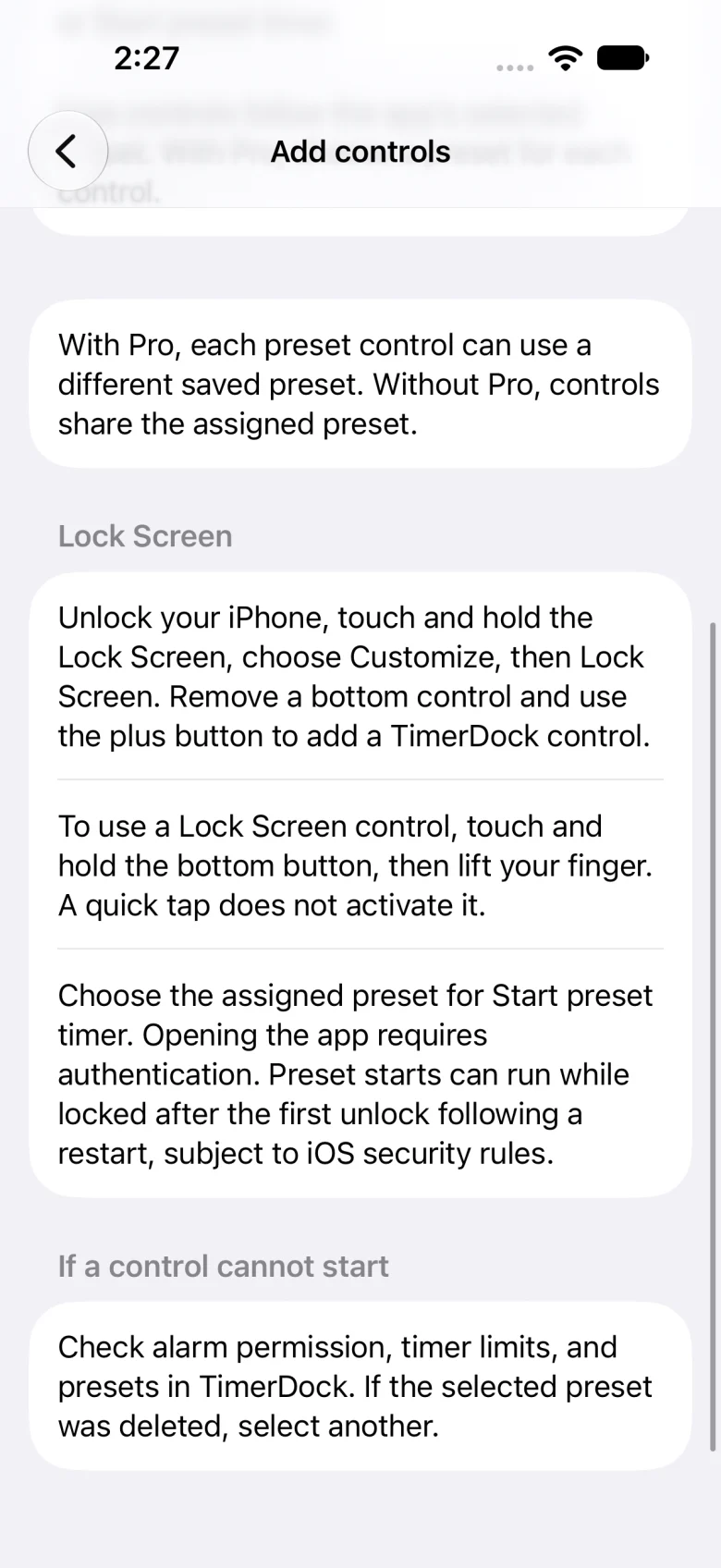
Touch and hold your iPhone’s Lock Screen, choose Customize, and add TimerDock to a bottom control position.
- Save and configure the preset you want in the app first.
- Add Open Timer or Start Preset to a bottom Lock Screen control position.
- Touch and hold a bottom control to use it. Opening the app and some other actions may require Face ID or your passcode.
- You can also find the control setup guide in TimerDock’s Settings.
Timer alerts and the countdown
TimerDock uses iPhone system alarms for timer alerts. Alarm permission is required.
- Once a timer has started, the system can alert you when time is up while the app is in the background or your iPhone is locked.
- Live Activities show the countdown on the Lock Screen. Supported iPhones can also show it in Dynamic Island.
- If you have not allowed alarms, open iOS Settings from the app’s settings screen and review the permission.
- iOS limits the number of scheduled timers and simultaneous Live Activity displays. Pro does not guarantee unlimited system registrations or displays.
Buy Pro or restore a purchase
Open TimerDock Pro from Settings to review its features and current purchase price.
- Pro is a one-time purchase. Review the in-app price and Apple’s purchase sheet before buying.
- If a previous purchase is not reflected, use the same Apple Account that made the purchase and choose Restore Purchases.
- Wait for verification or restoration to finish. If an error appears, check your connection and Apple Account before retrying.
- If Pro becomes inactive after a refund or another entitlement change, existing timers and presets are not automatically deleted. Free limits apply to new operations.
If a timer will not start or update
Read the error shown in the app, then check the items that match your situation.
- If you already have 2 timers running in the free version, cancel one you no longer need or wait for one to finish.
- If alarm permission was denied, check it in iOS Settings. If Open Settings does not work, find TimerDock in the iPhone Settings app.
- If the system’s registration limit has been reached, remove unneeded timers and try again.
- If the app shows that it is syncing after reopening, wait for it to check the system state. Timers stopped or removed by iOS are not automatically registered again.
Frequently asked questions
Will I get an alert when the app is closed?
Started timers are managed by iPhone system alarms, which can alert you in the background or while the screen is locked. Alarm permission is required.
How many timers can I use for free?
You can run 2 timers at once and save 3 presets. Preset-start controls share one selected preset.
Is Pro a subscription?
No. Pro is a one-time in-app purchase. Check the App Store and in-app price after release.
Does it work on iPad or Apple Watch?
The current app targets iPhone with iOS 26.0 or later. There is no iPad or Apple Watch app.
Can I name timers?
In the current version, timers and presets are identified by their durations. There is no timer-name editor.
Why will my control not start a preset?
Check alarm permission, your saved presets, the free preset assignment, and the simultaneous timer limit. If the selected preset was deleted, select a preset again in the app.
Development screenshots. The Pro screen shows a price from the screenshot test store.
← Back to overview