
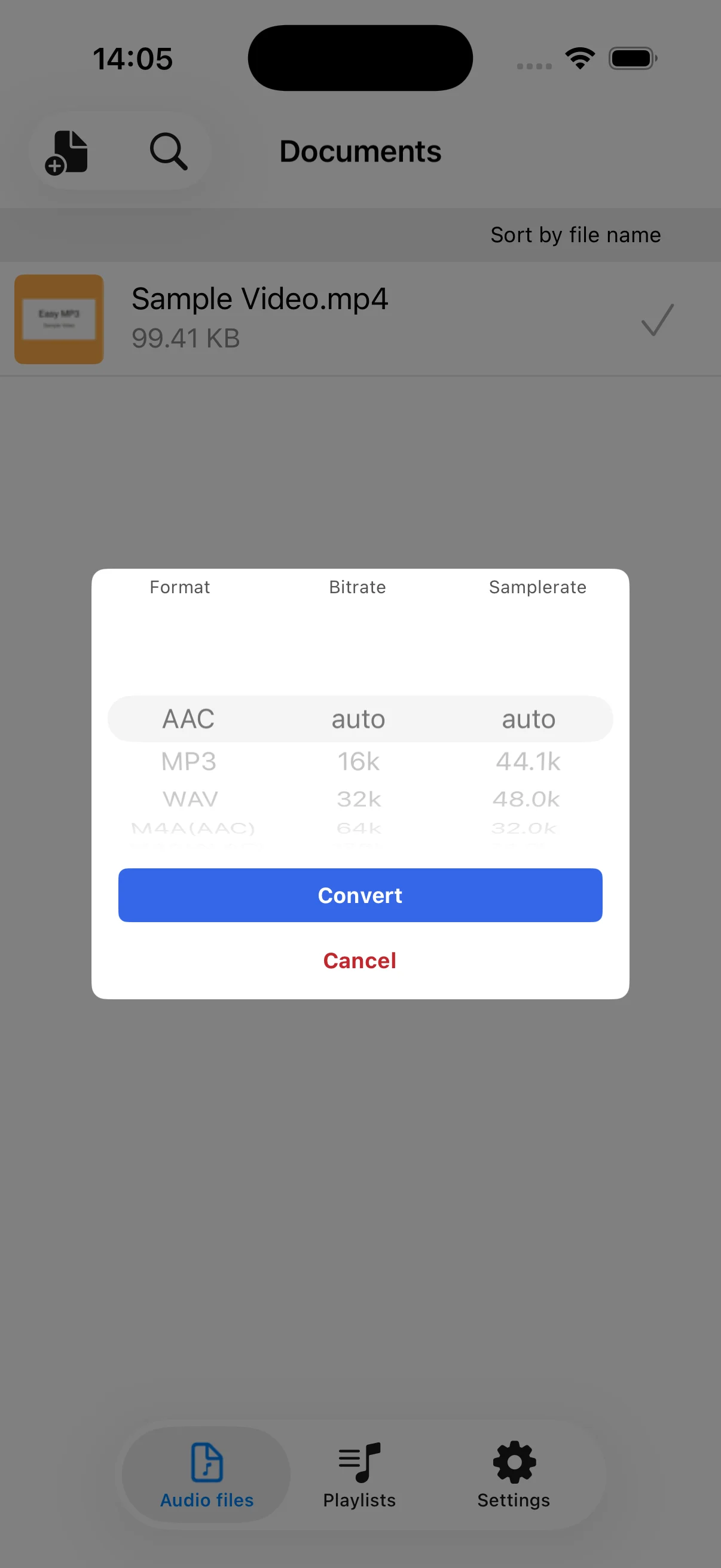
Choose a format for the destination
MP3 is widely supported, M4A (AAC) works well across Apple devices, and WAV is useful when you want uncompressed audio for further editing. Confirm that the receiving app or device supports the selected format.
Balance size and quality with bitrate
For MP3 and AAC, a higher bitrate generally preserves more detail but creates a larger file. Speech may work at a lower bitrate than music. Auto is a sensible choice when you do not have a specific delivery requirement.
Keep sample rate close to the source
Sample rate describes how often audio is sampled each second. Raising it cannot restore detail missing from the source and can increase size or processing time. Use Auto unless another app or workflow requires a specific rate.
Test the converted file
Listen with the headphones, speakers, or destination app you will actually use. Check playback, duration, volume, and file size before deleting or reorganizing the source file.