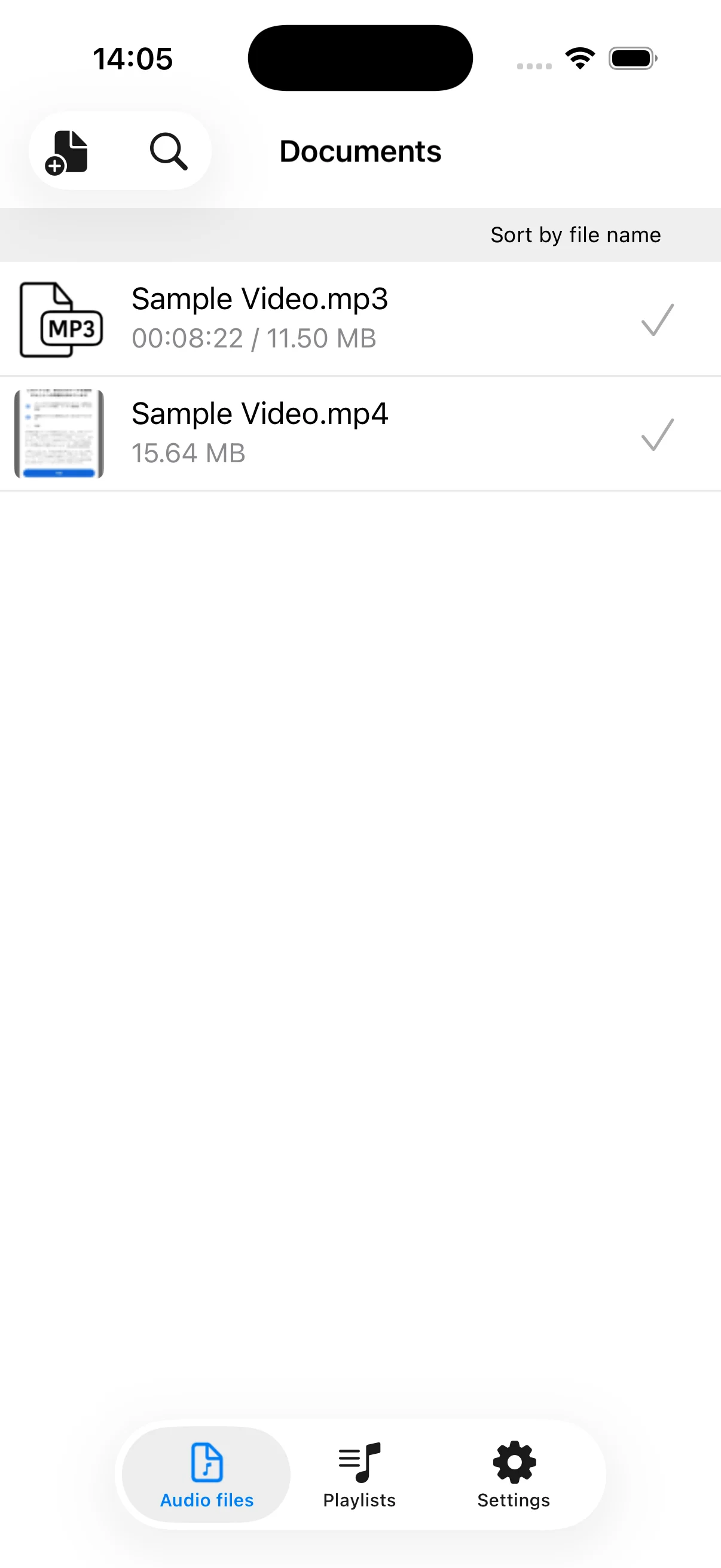
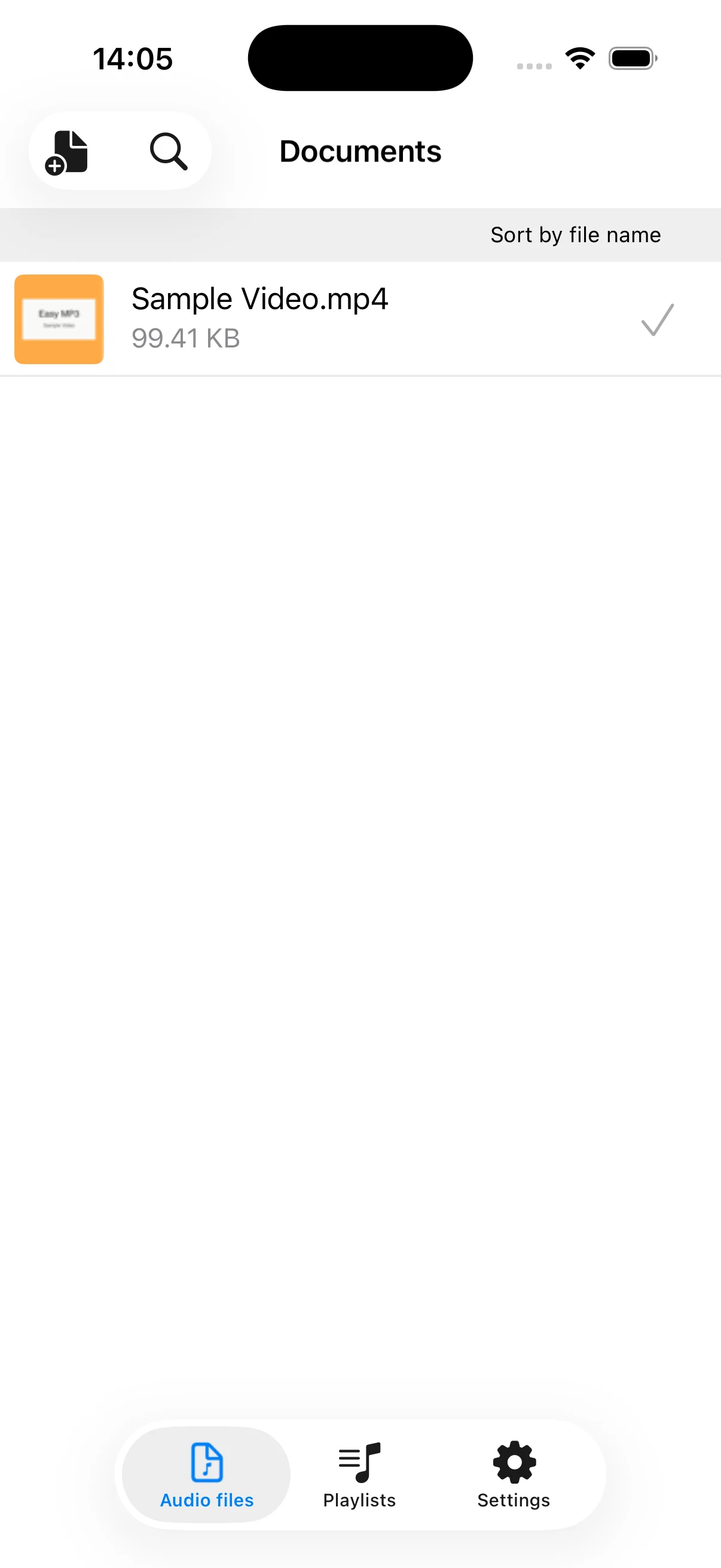
Confirm the imported video in the file list
A video imported from Photos or Files appears in the Documents list. Check its filename, extension, and size so you select the intended source. Use a recording you made or another file you are authorized to convert.
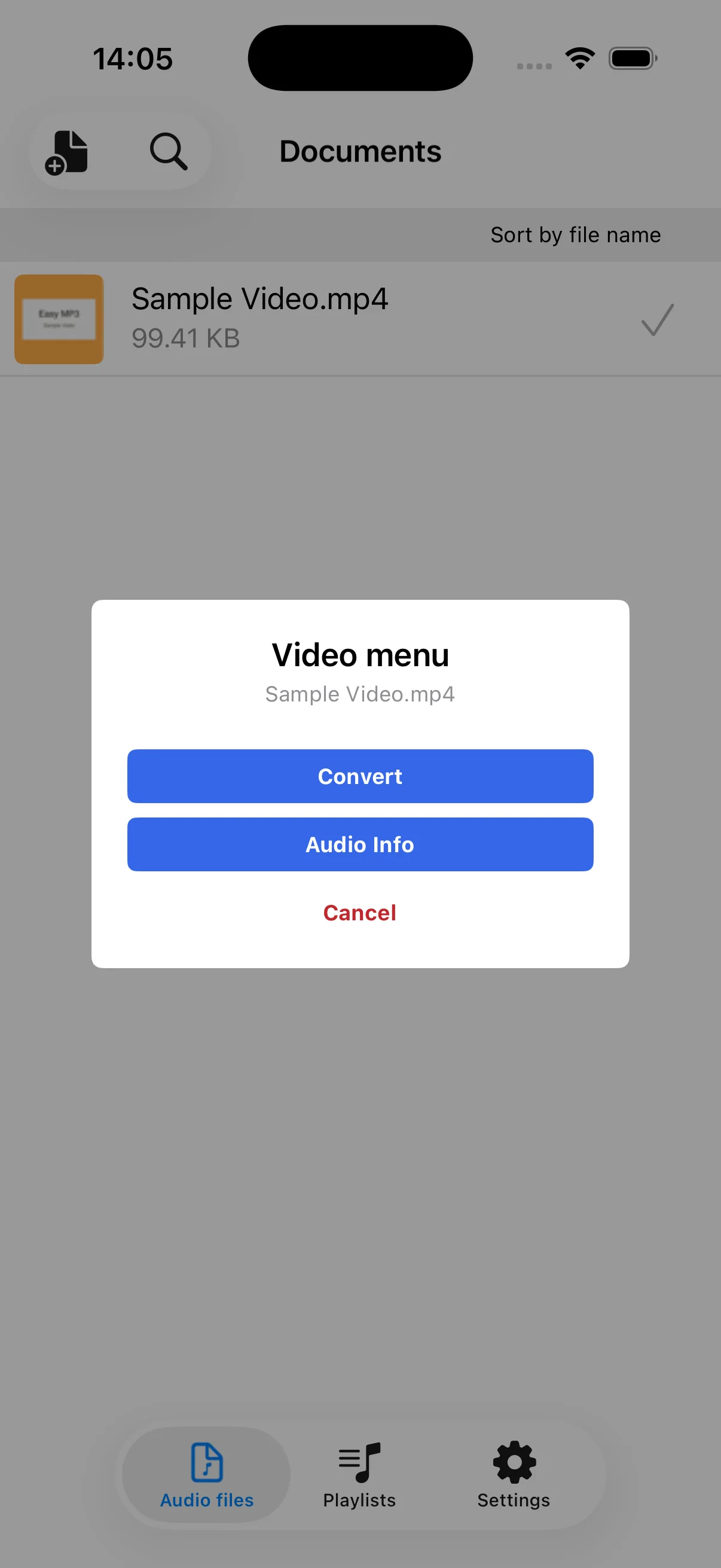
Tap the video and choose Convert
Tap the video in the list to open the video menu, then choose Convert to extract its audio. Audio Info lets you inspect the audio stream in the video before starting.
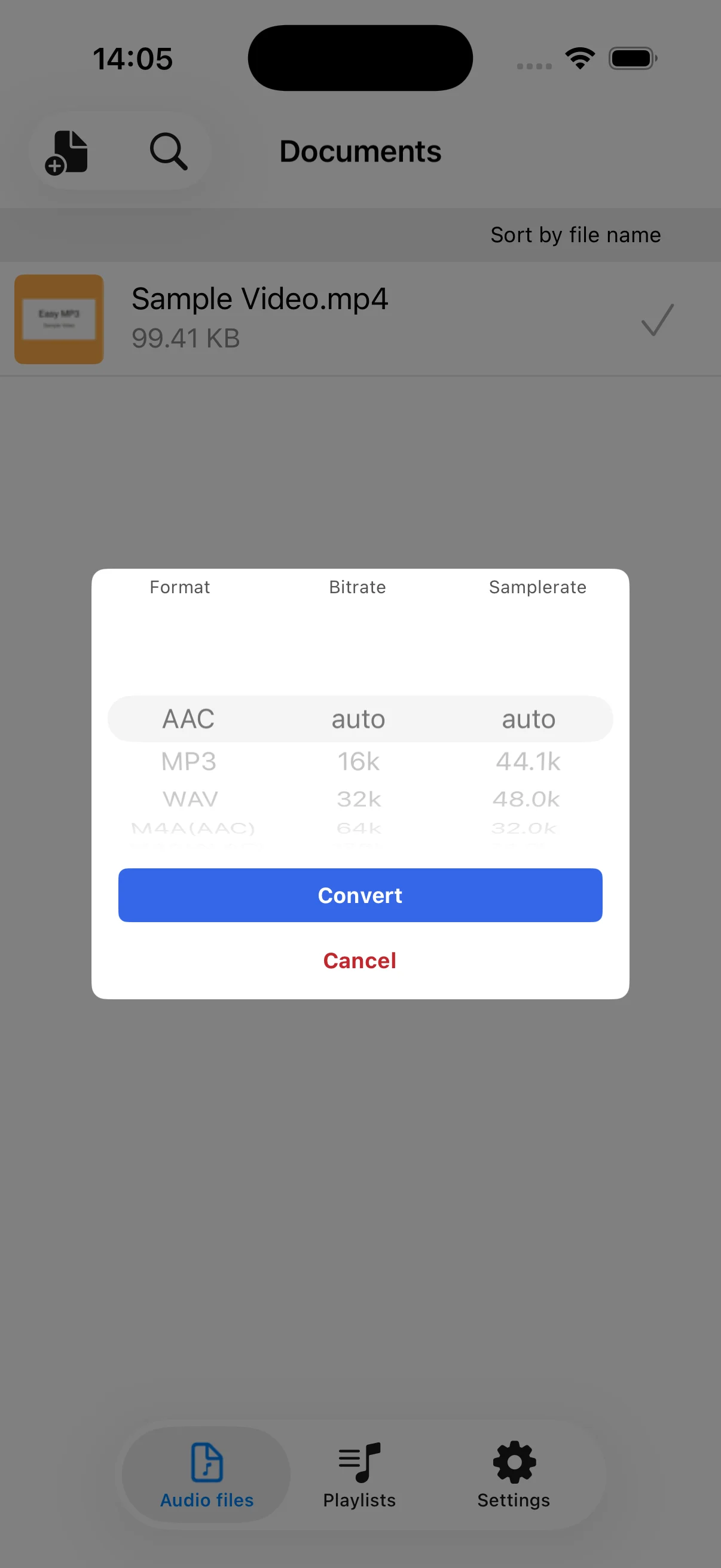
Select MP3 and review the settings
Choose MP3 as the format, then set bitrate and sample rate if your destination has specific requirements. Auto is a practical starting point for most files. Tap Convert after checking the settings.
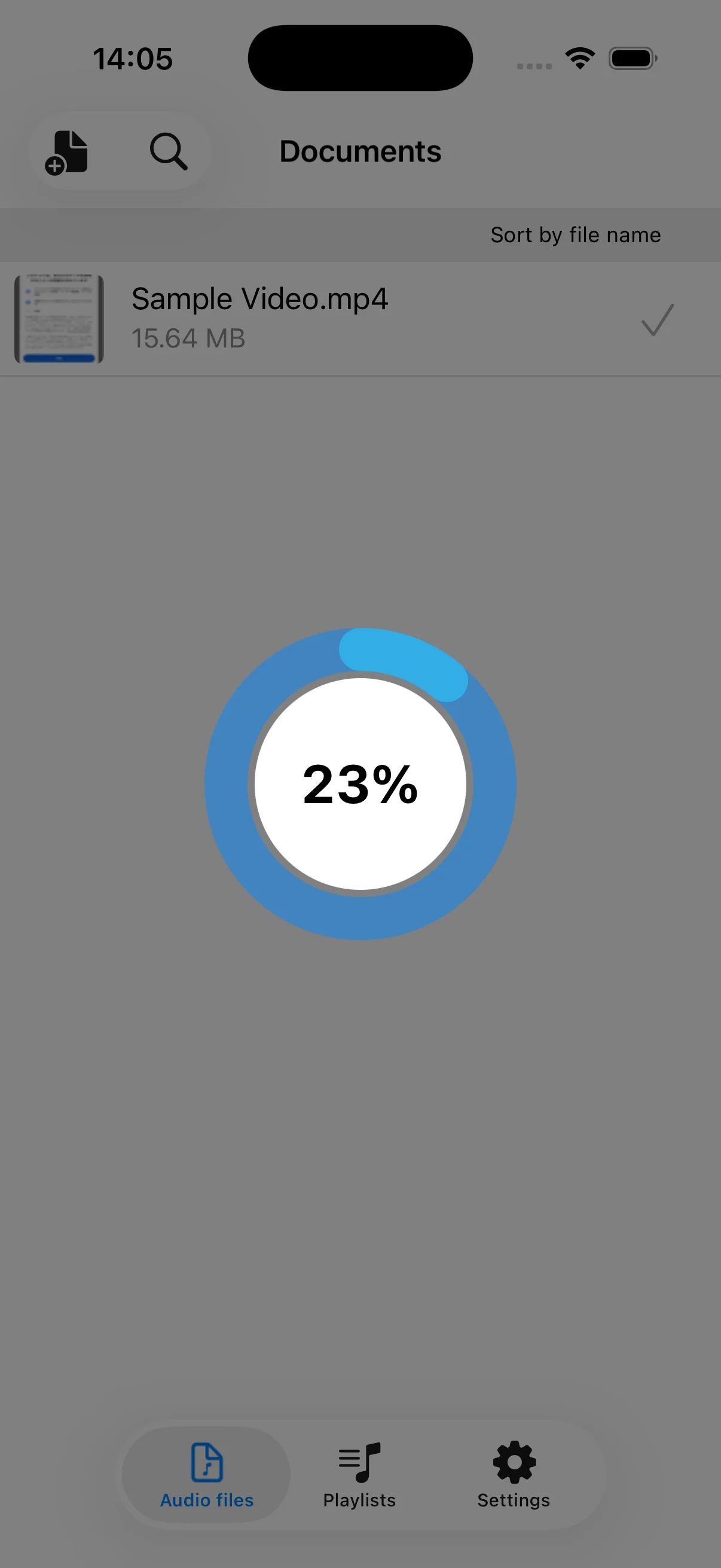
Wait for conversion to reach 100%
A circular indicator shows the actual conversion progress. Long videos or higher-quality settings can take more time, so keep the app open until it finishes. Conversion operates on a file already stored on your device.
Confirm the new MP3 in Documents
When conversion finishes, an MP3 with the source name is added to the Documents list. Check its extension, size, and duration, then tap it to play. You can rename, edit, save to Files, or share it with a compatible app.