About source images
The app converts images already stored in Photos. It does not download images from websites. Keep important originals until you have checked every converted file.
01
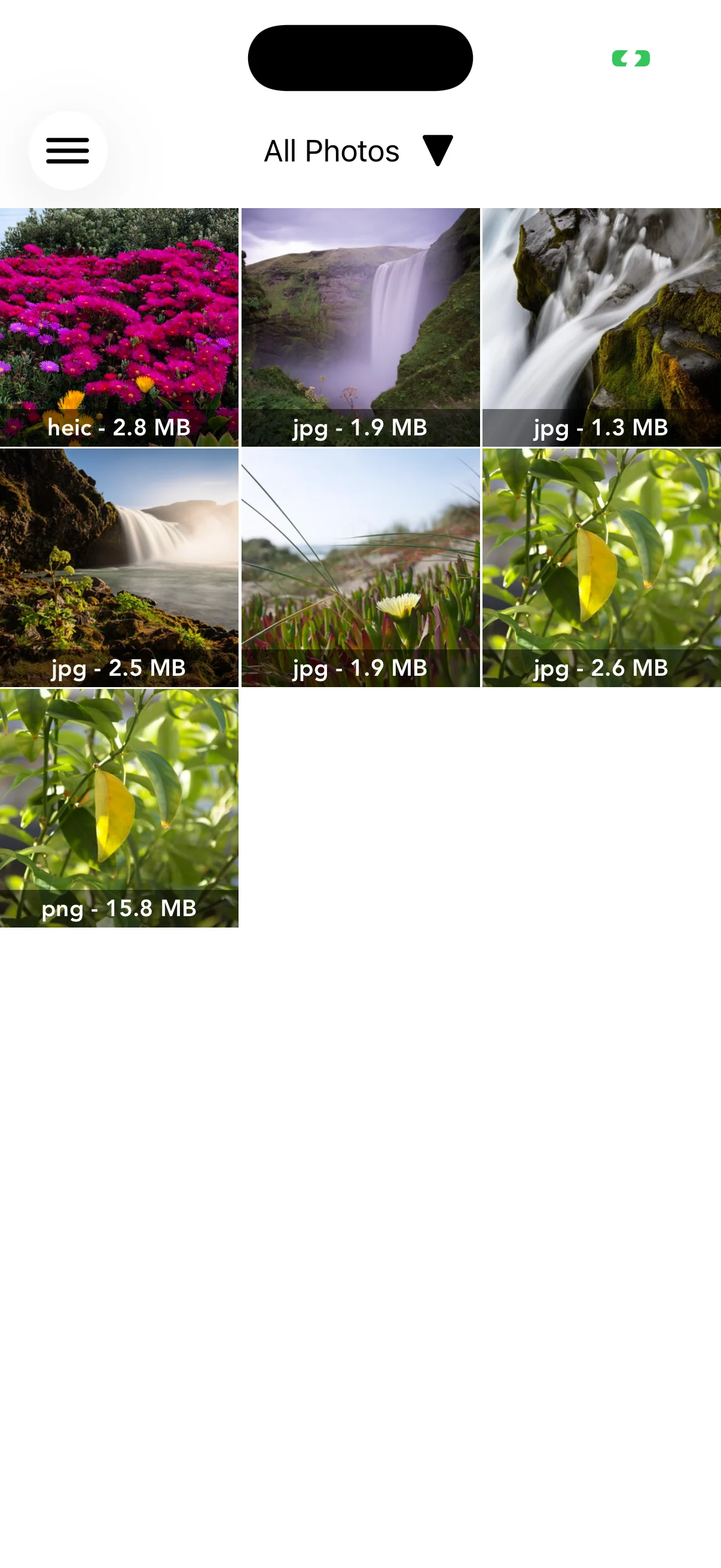
Choose images from Photos
The gallery shows thumbnails together with the current extension and size. Tap one or more photos, then continue with the count shown at the top right.
02
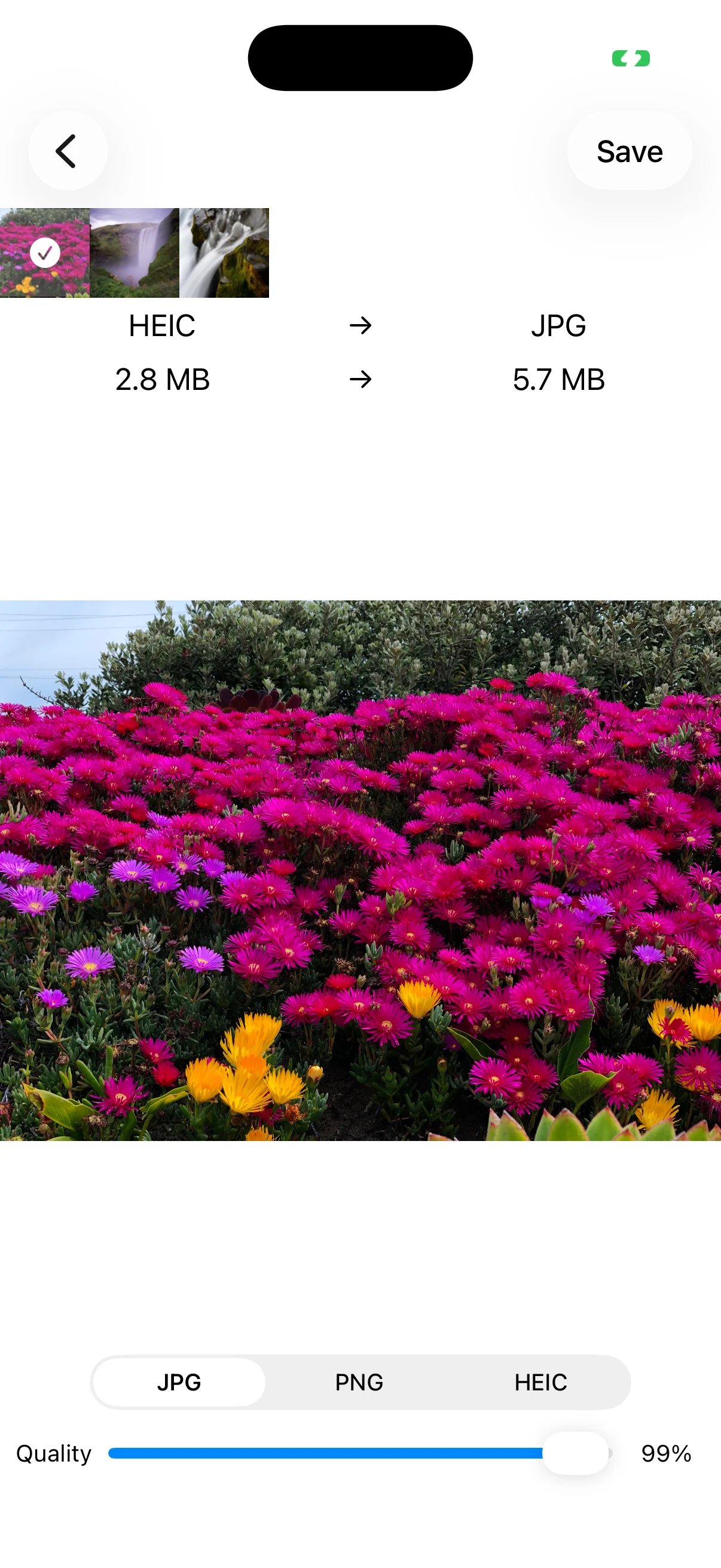
Choose JPG, PNG, or HEIC
Use JPG for broad compatibility, PNG when transparency must be preserved, or HEIC for efficient storage in compatible Apple workflows. Confirm that the receiving device or service supports HEIC.
03
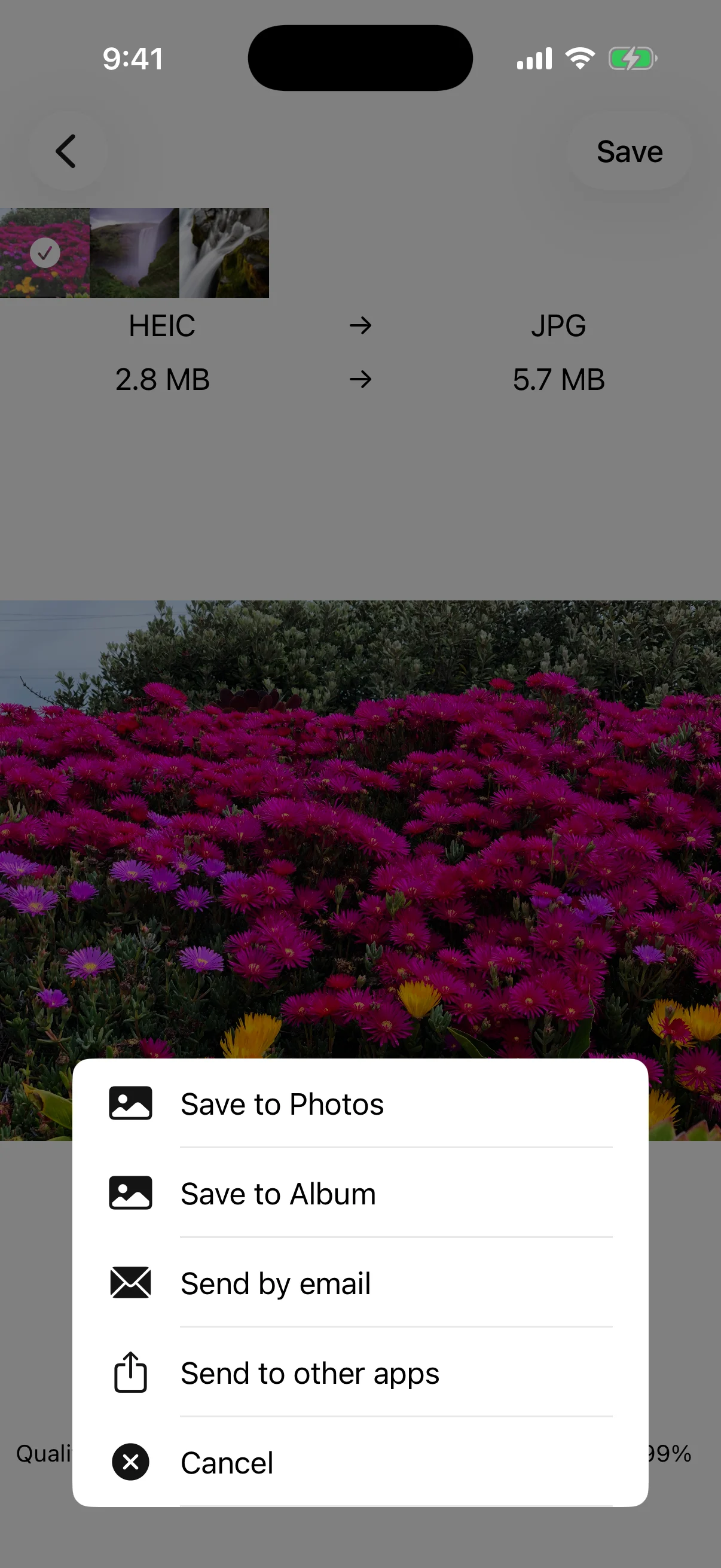
Compare and save the result
Check the source and estimated output extension and size above the preview. Tap Save, choose Photos, an album, email, or another app, and open the exported image to verify it.