About source images
The app converts images already stored in Photos. It does not download images from websites. Keep important originals until you have checked every converted file.
01
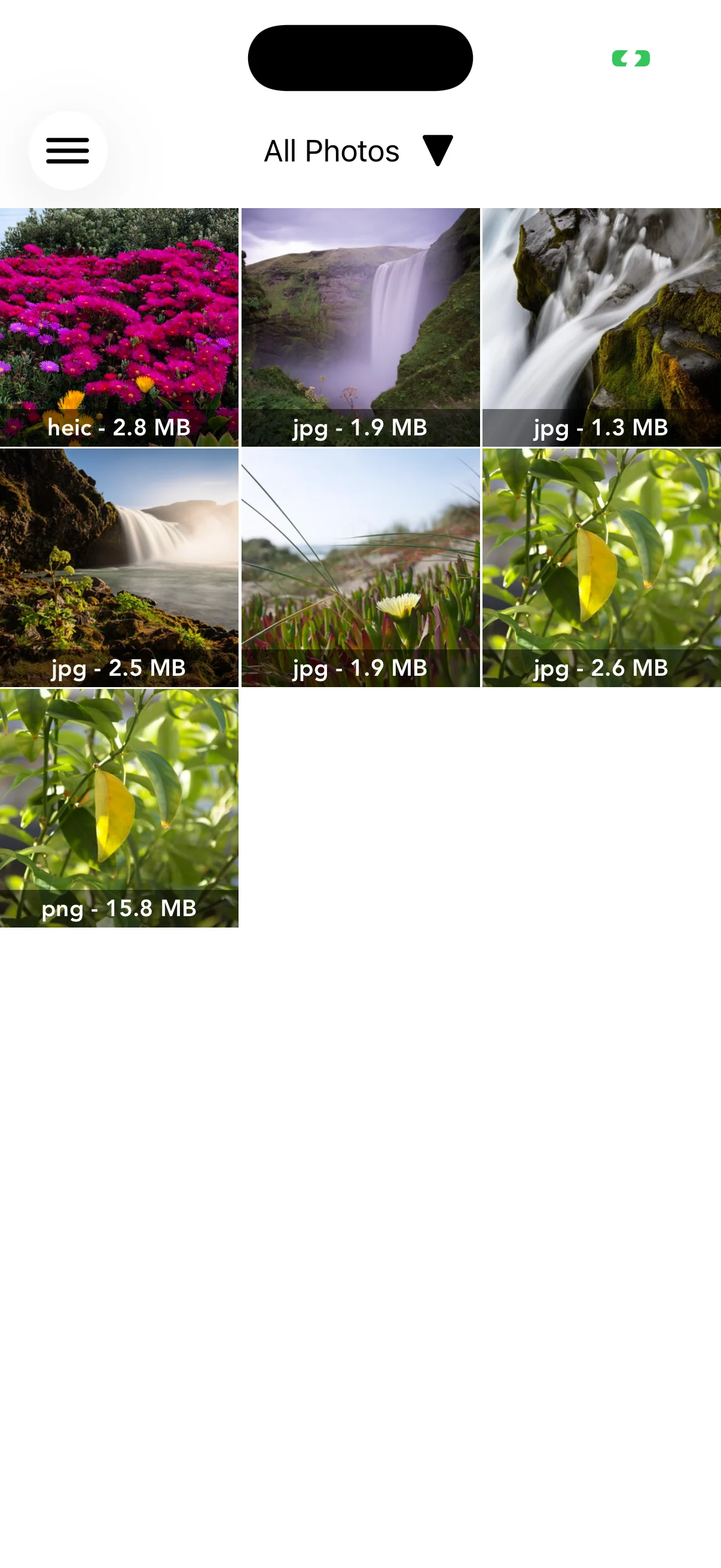
Select photos for one purpose
Group images that need the same result, such as email attachments, website assets, or document uploads. The selected count appears at the top right.
02
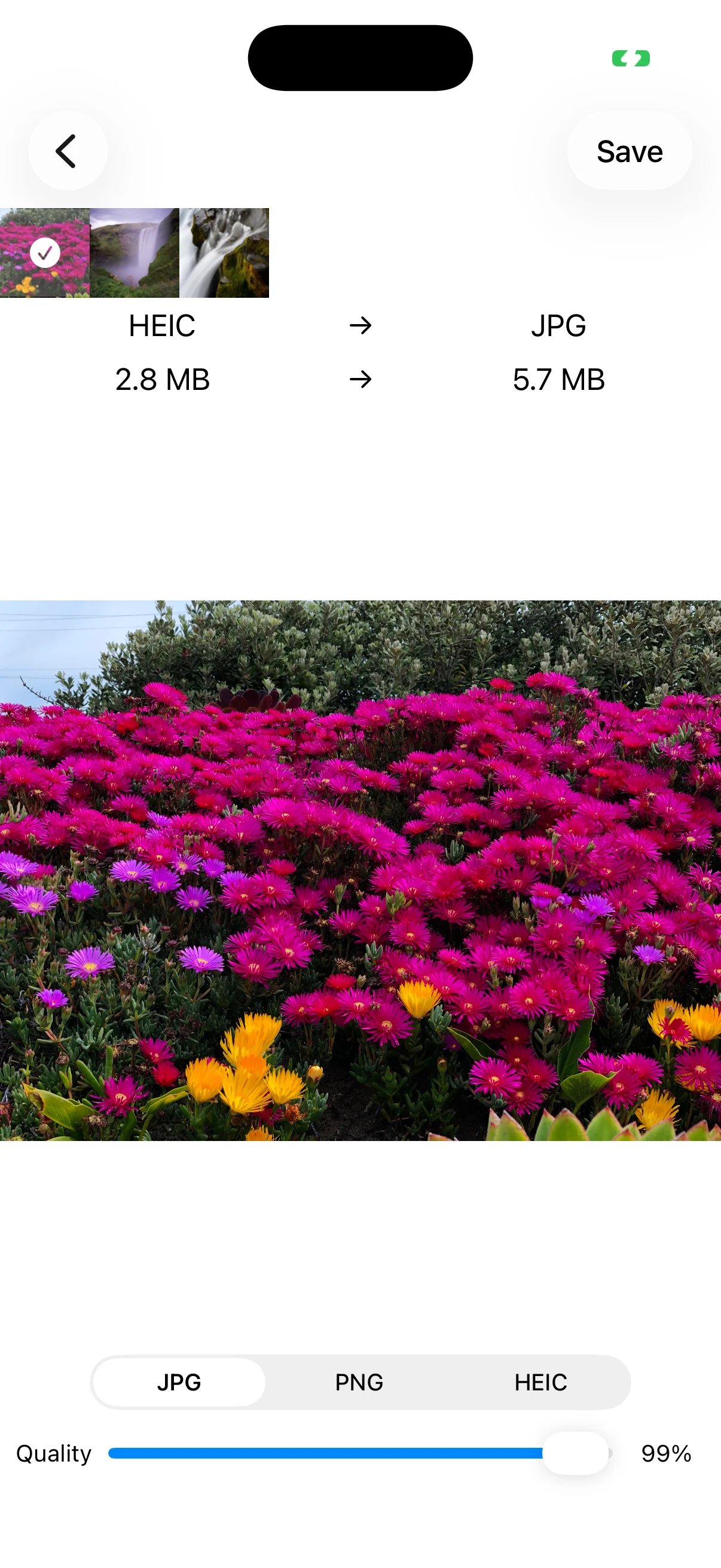
One setting applies to the whole batch
The chosen JPG, PNG, or HEIC format and quality apply to every selected image. Run separate batches when individual photos need different formats. Use the thumbnails to inspect each estimate.
03
Leave enough free storage
Batch conversion creates several new files while the originals still exist. Keep sufficient free space, verify every result, and only then decide whether originals should be removed.