Review files in the saved PDF list
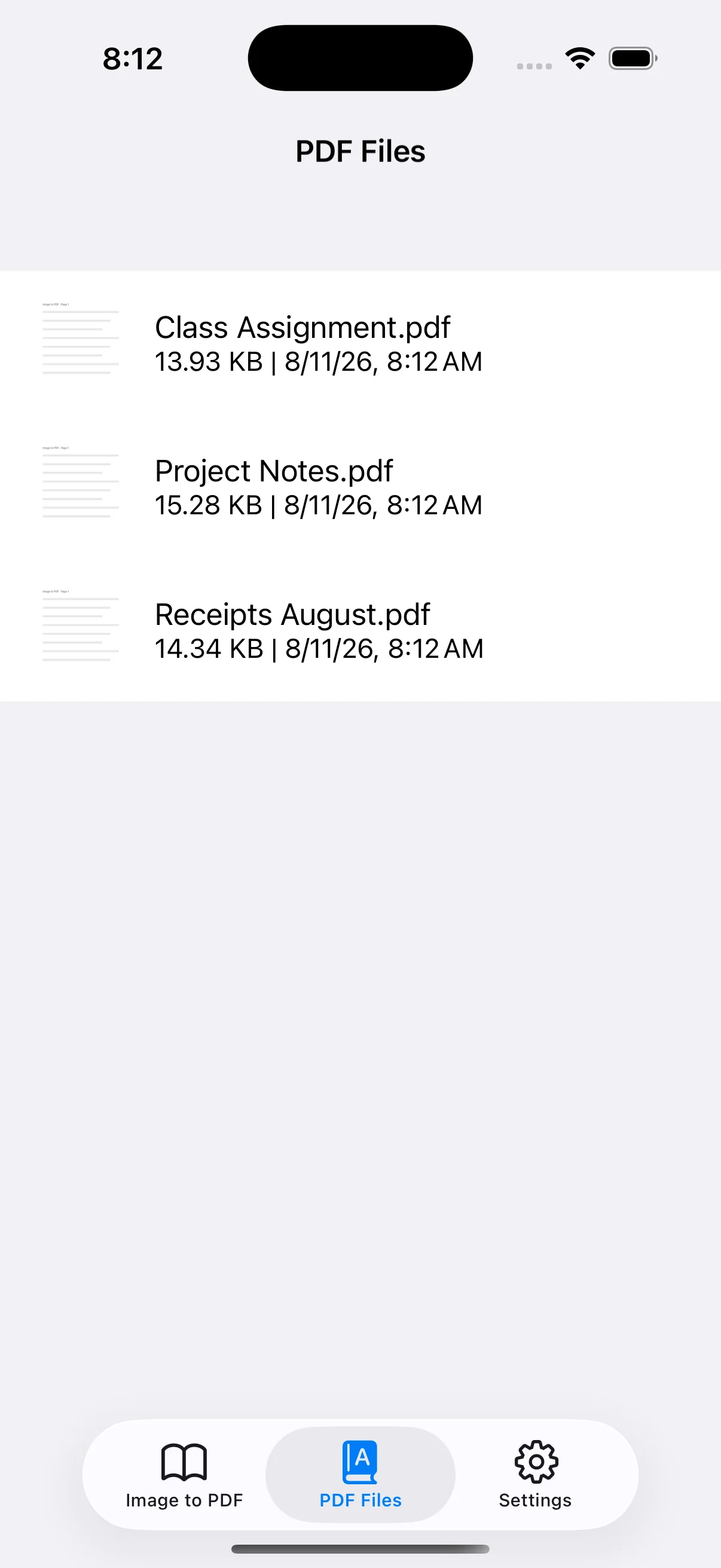
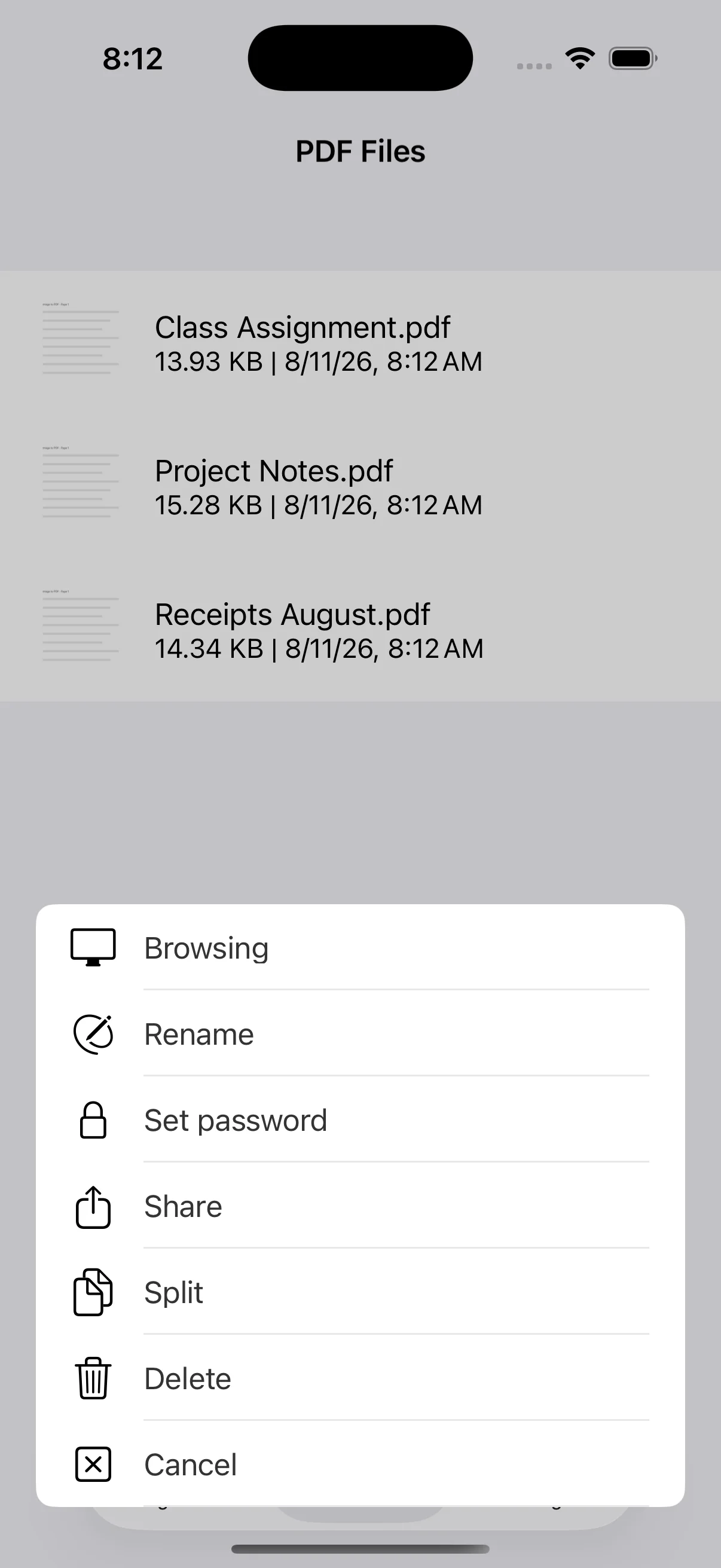
The PDF Files tab shows each saved file's name, size and date. Tap a row to open its actions. When many similar documents accumulate, rename them with a project, date or destination so the correct attachment is easy to identify.
Share through the iOS share sheet
Choose Share, then select Mail, Messages, Save to Files, or another available destination. Services can have attachment-size limits, so wait for the transfer to finish and confirm that the recipient received the intended file.
Split selected pages into separate PDFs
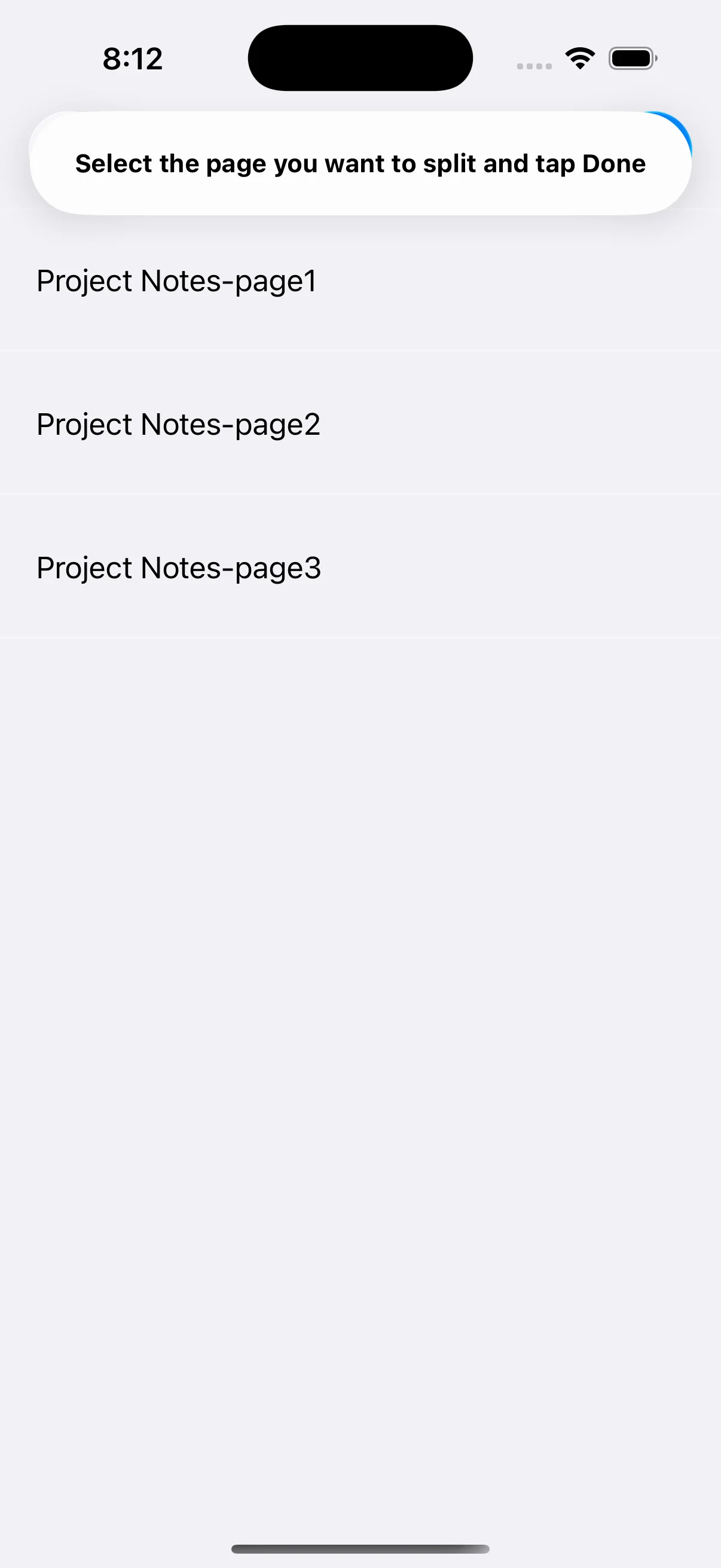
Choose Split to see every page in the document. Select the pages you want and tap Done to save them as individual PDFs. This is useful when the original should remain intact but only certain pages need to be sent.
Back up important files before deletion
Delete removes an unneeded PDF from the app. Share important files to Files or another location you manage before deleting them. Recovery is not guaranteed, so verify the file name and contents before confirming a destructive action.