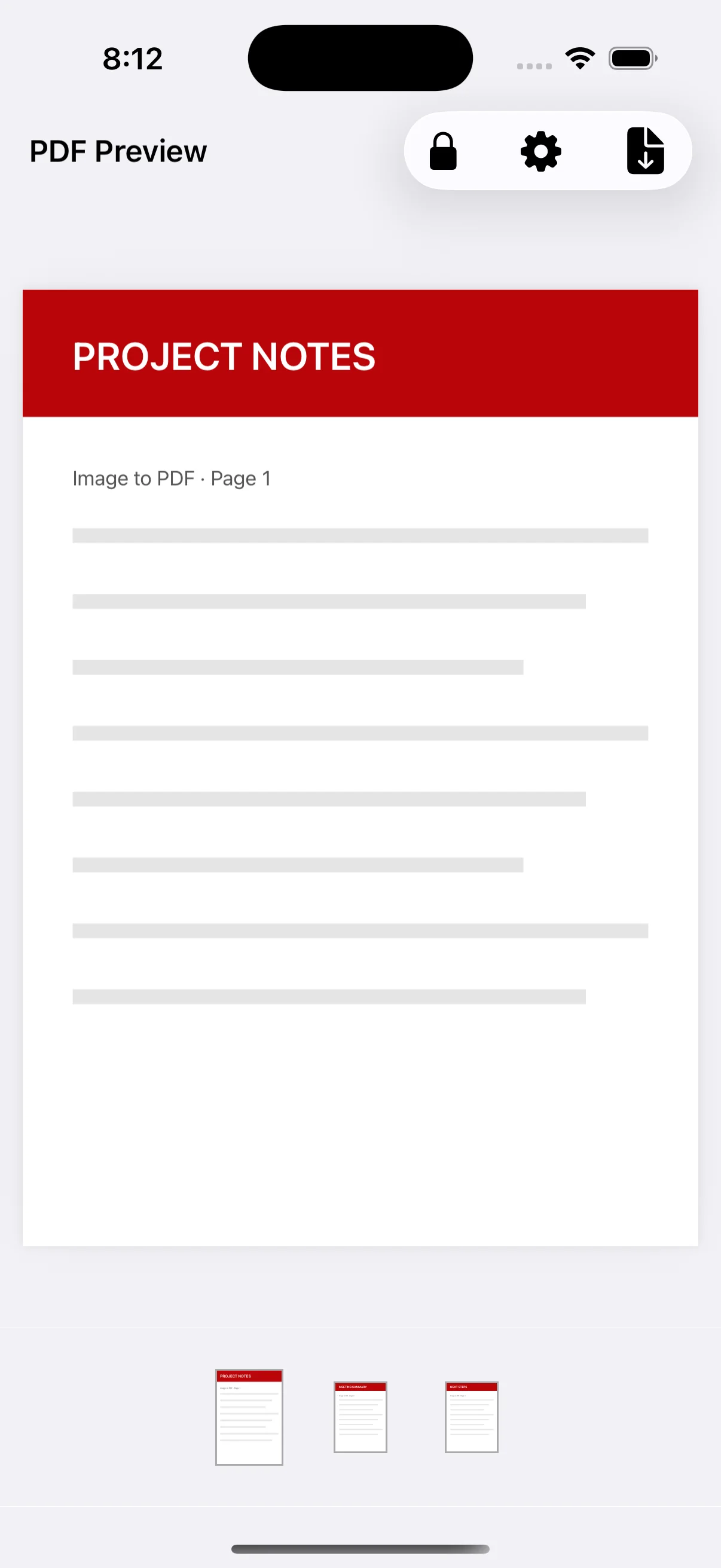
Open the lock control
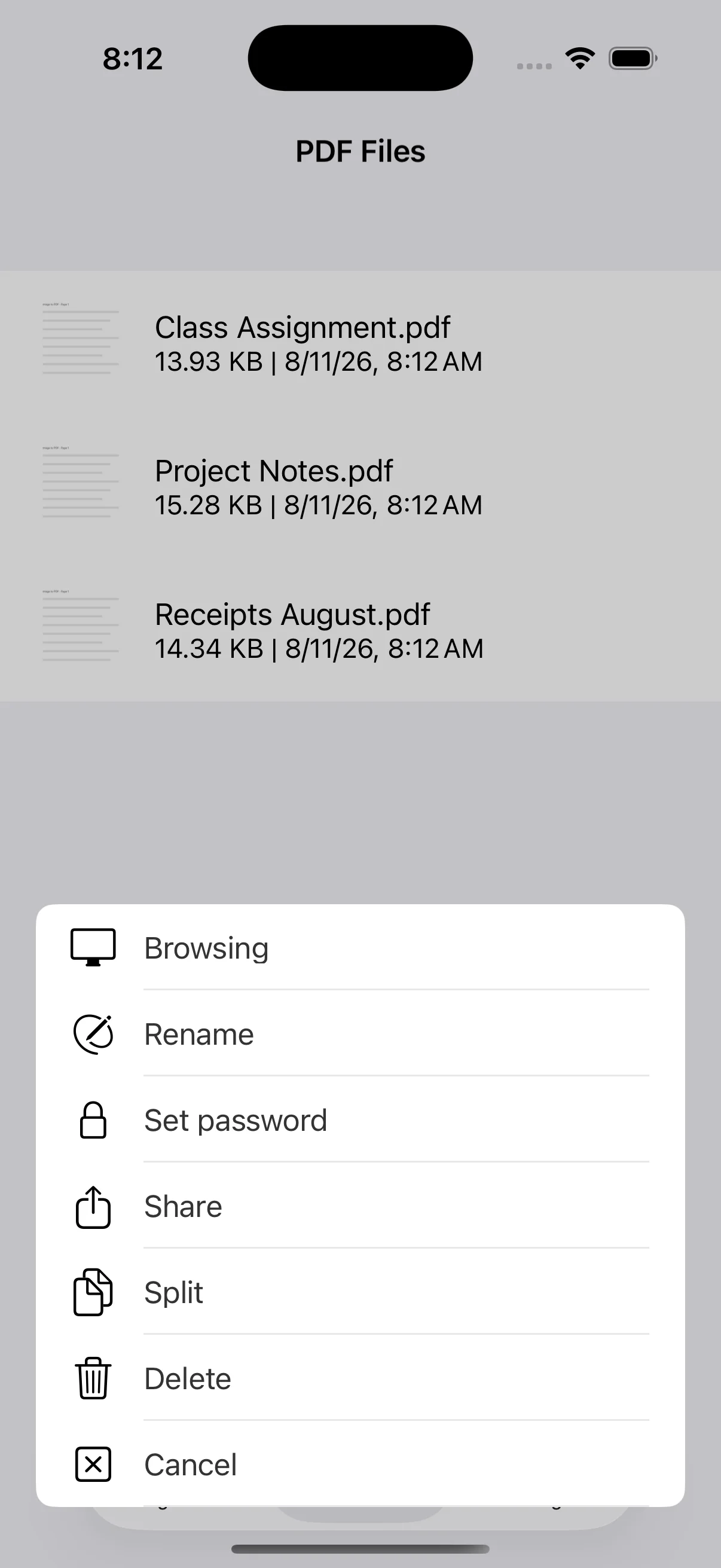
Tap the lock button in the PDF preview to protect a newly created file. For an existing PDF, select it in PDF Files and choose Set Password from the actions menu. PDF password protection is a Premium feature.
Use a password you can manage
Avoid an easily guessed name or birthday and follow any input requirements shown by the app. Store or communicate the password safely. If it is forgotten, both you and the recipient may be unable to open the document.
Send the password separately when appropriate
For sensitive documents, consider sending the PDF and password through separate channels or at different times. If a company, school, or other recipient has an official submission process, follow its instructions first.
Test the protected file before sending
Open the saved PDF and confirm that the intended password unlocks it. Password protection can reduce some risks, but it does not replace checking the recipient, attachment, and document contents before sharing.