Select images in page order
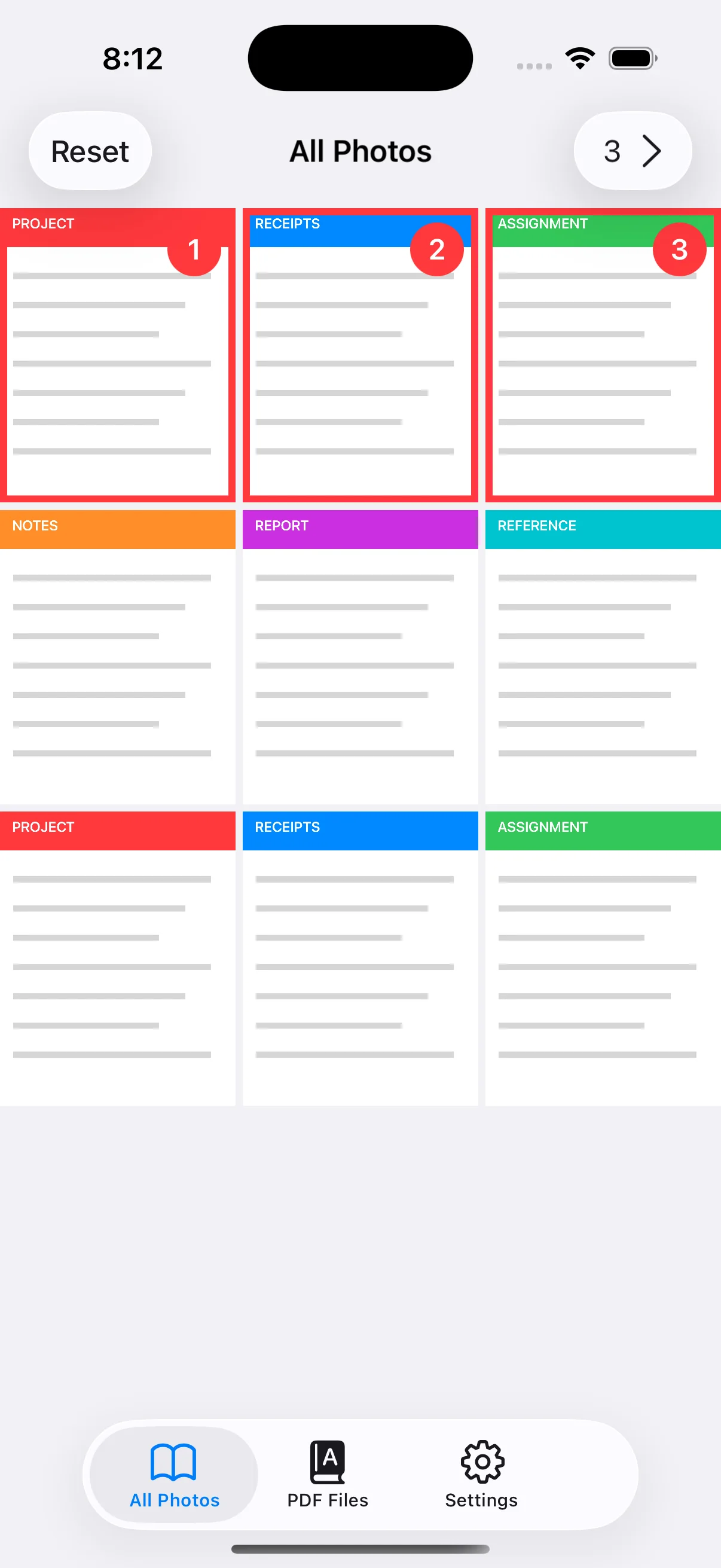
Open the Image to PDF tab, allow access to Photos, and tap the images you need. The numbers 1, 2 and 3 show the final PDF page order. Select receipts by date or an assignment from cover to final page. The free version accepts up to three images; Premium removes this selection limit.
Choose Original or a paper size
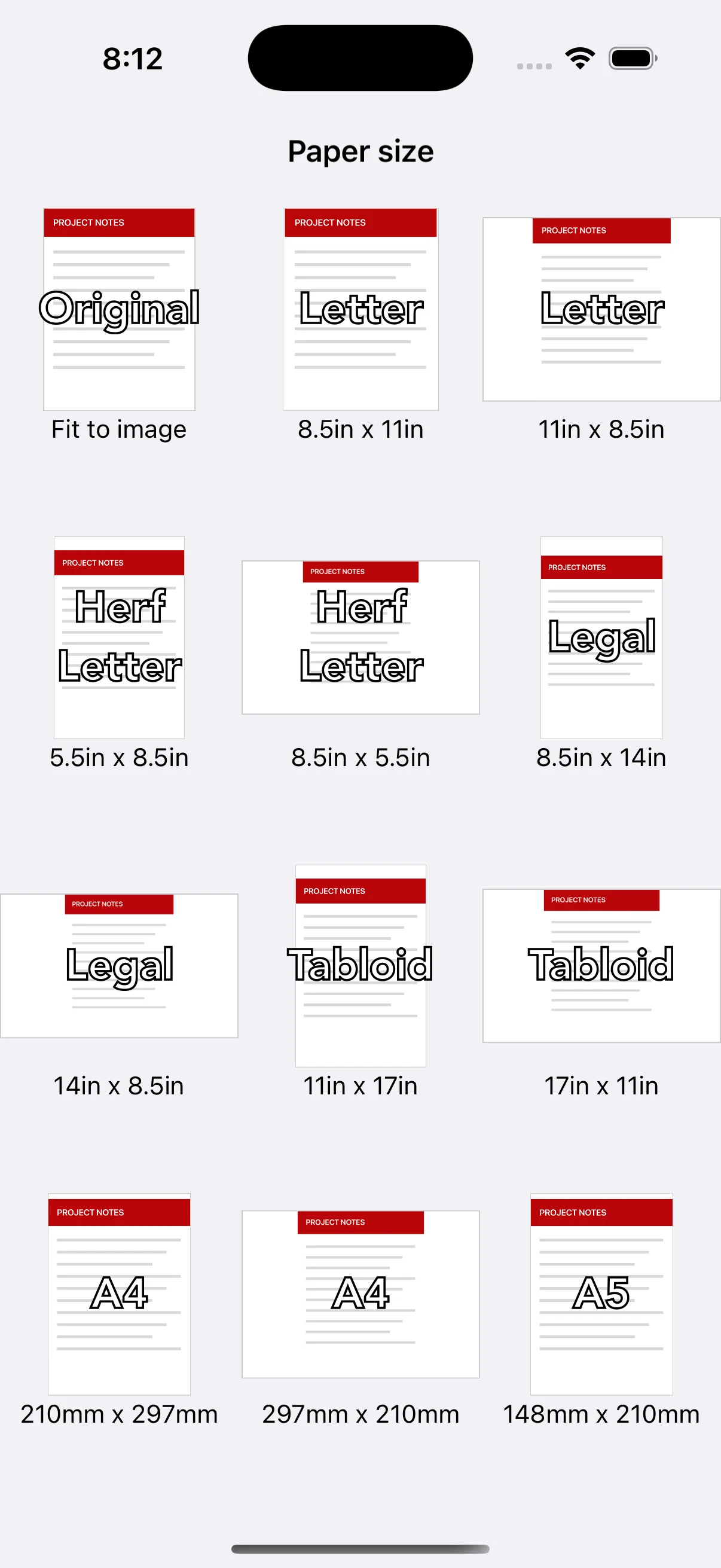
Choose Original when the page should follow each image's aspect ratio. Select A4, Letter or another fixed size when printing or submission requirements specify a page format. Portrait and landscape versions are available, so match the paper orientation to the image and its destination.
Check every page in the PDF preview
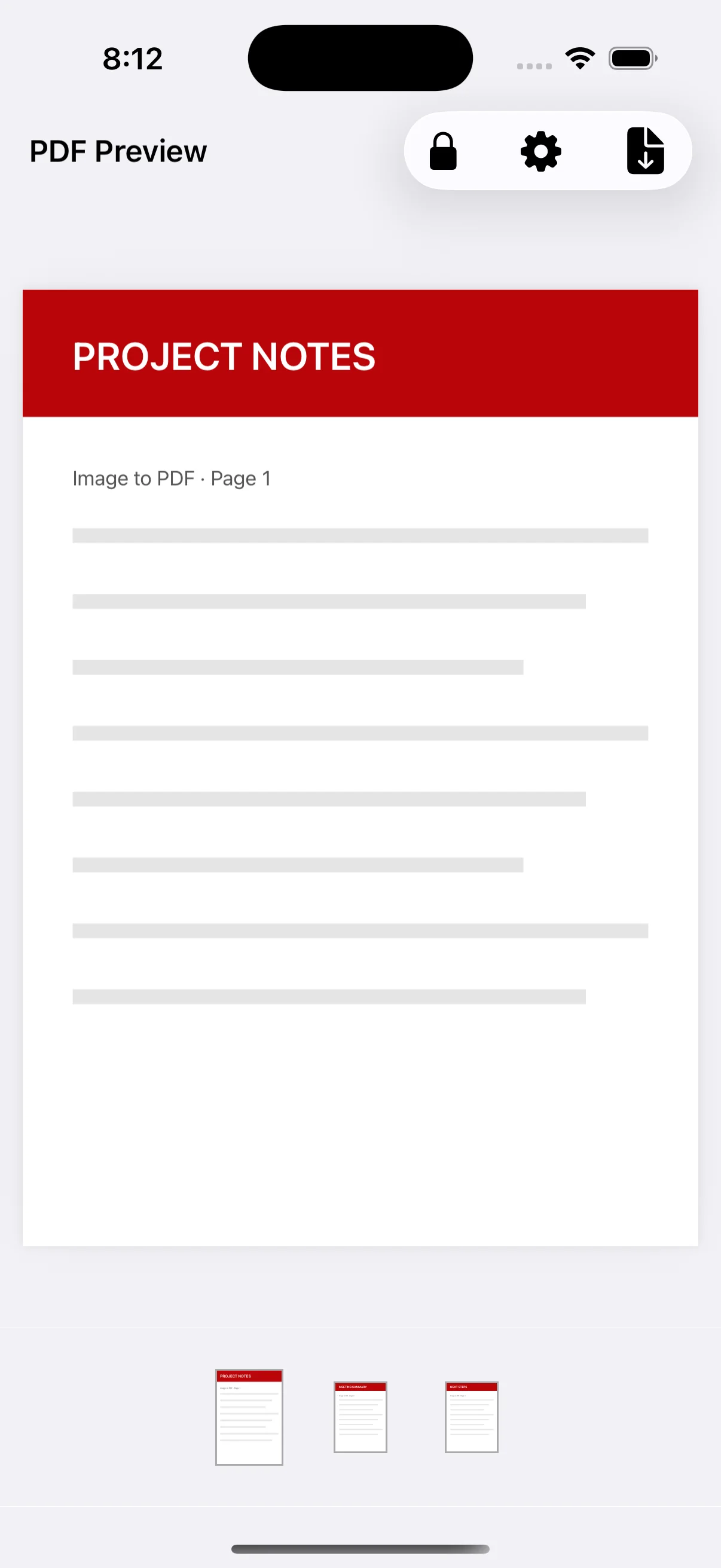
Use the thumbnails at the bottom of the preview to inspect the pages. Confirm their order, orientation and cropping before saving. If text or an edge is missing, return to the previous screen and change the image selection, paper size, margin or placement setting.
Name and save the PDF
Tap the save button and enter a file name that describes the content. The PDF is added to the PDF Files tab, where you can view, rename, share, password-protect, split or delete it later. Including a date or destination in the name makes repeated documents easier to find.