
Create a backup before major changes
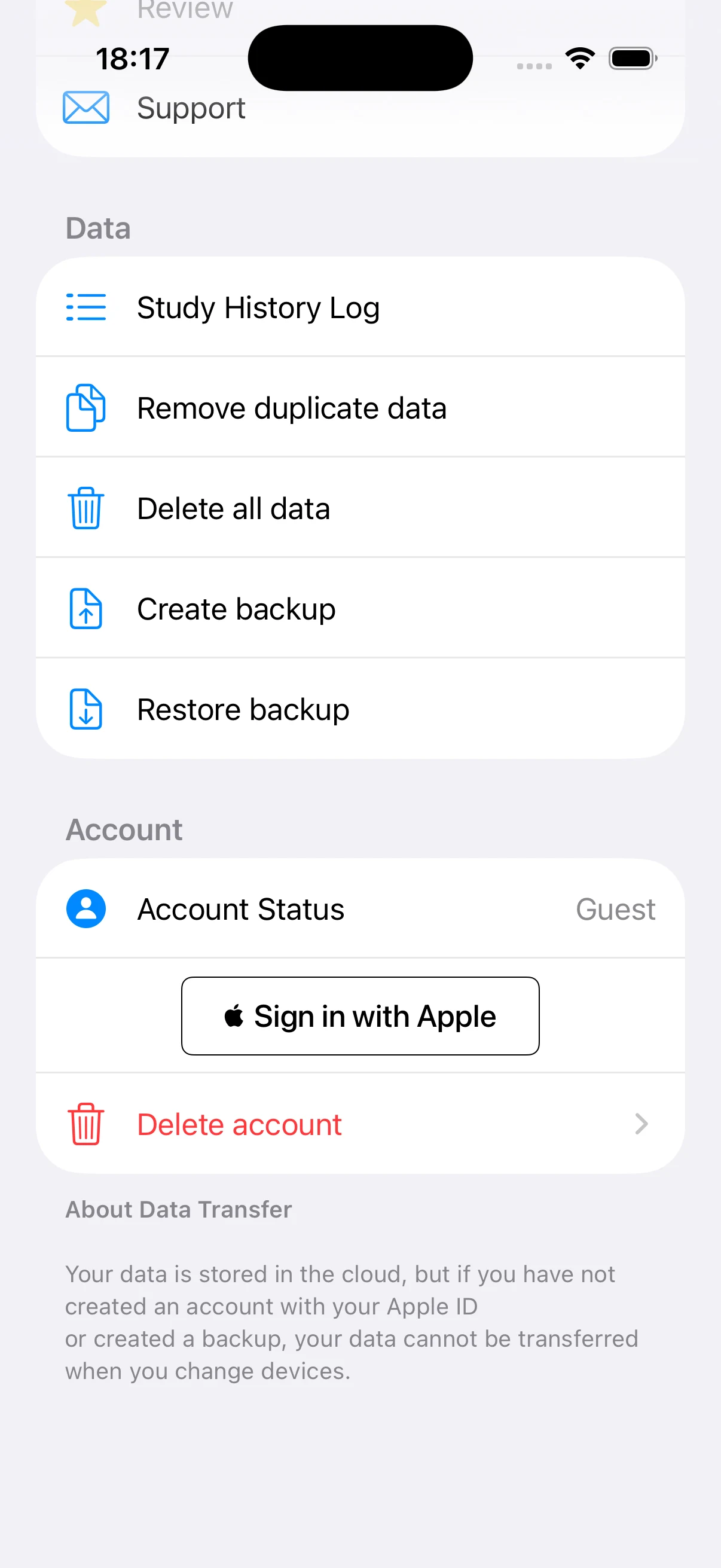
Settings includes an option to create a backup. Save the exported file in a location you control before device changes, large history edits, or account operations.
Verify a backup before restoring it
Restore asks you to select a file. Confirm that it came from this app and covers the period you need. If the current installation contains important data, make a separate current backup first.
Use duplicate removal carefully
Duplicate cleanup can help after a migration creates repeated records. Review the history and chart totals first so distinct sessions that happen to look similar are not treated as mistakes.
Check account status before sign-in changes
The app can show guest or Apple ID account status. Create a backup and confirm the current account before signing out, transferring use to another device, or changing how you sign in.
Treat full deletion as irreversible
Delete All Data and Delete Account are broader than removing one incorrect session. Use individual history deletion when possible, and only continue with full deletion after confirming the backup and account.