
Open the manual-entry screen
Use the add button on the timer screen when you studied without running the app or kept the session in another notebook. Manual entry places that time into the same subject totals and charts as a timed session.
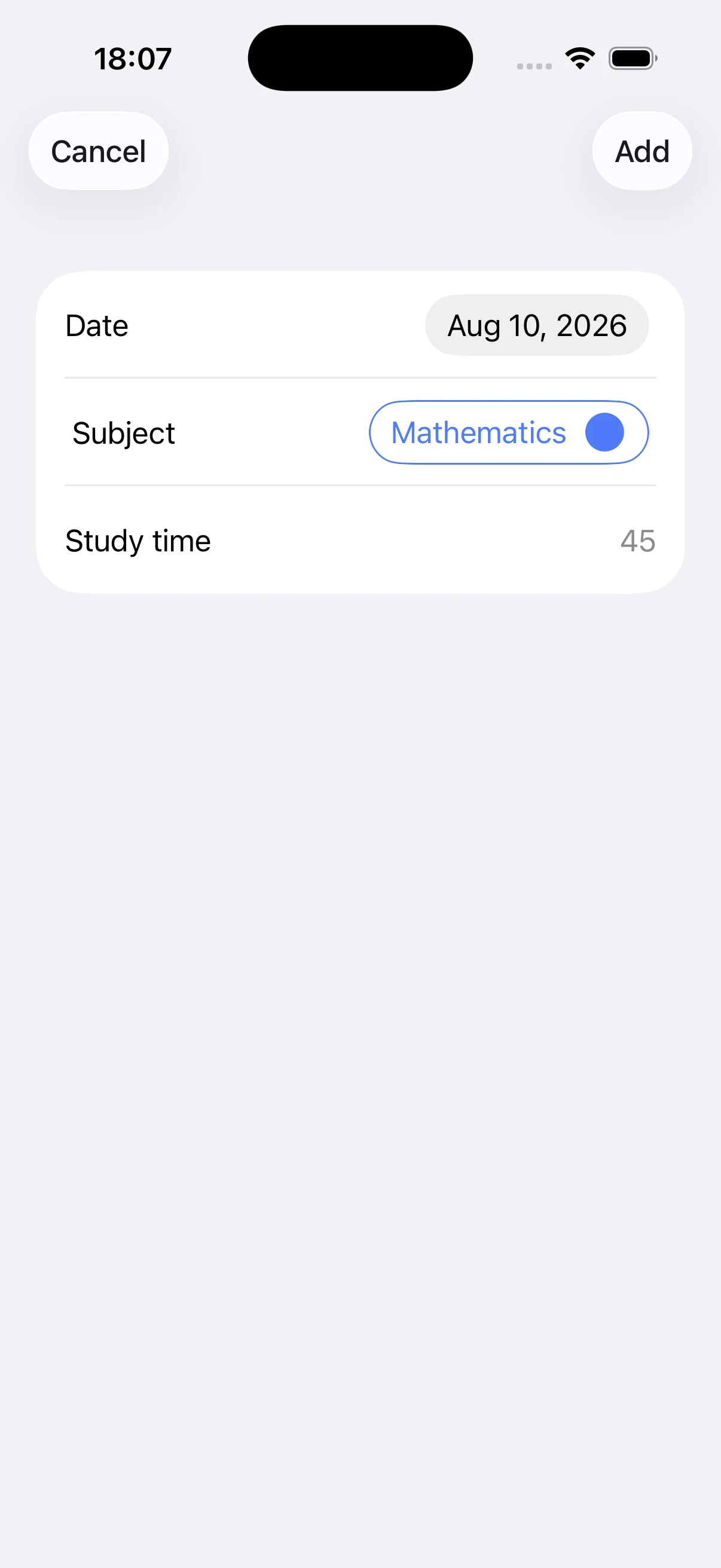
Enter the date, subject, and minutes
Choose the study date and subject, then enter a positive whole number of minutes. Because an exact start and end time are not known, the history identifies this type of entry as manually added.
Check for an existing session first
If the timer already saved the same study period, adding it again will increase the total twice. Review the study log for the same date and subject before creating a replacement entry.
Edit a record from the history list
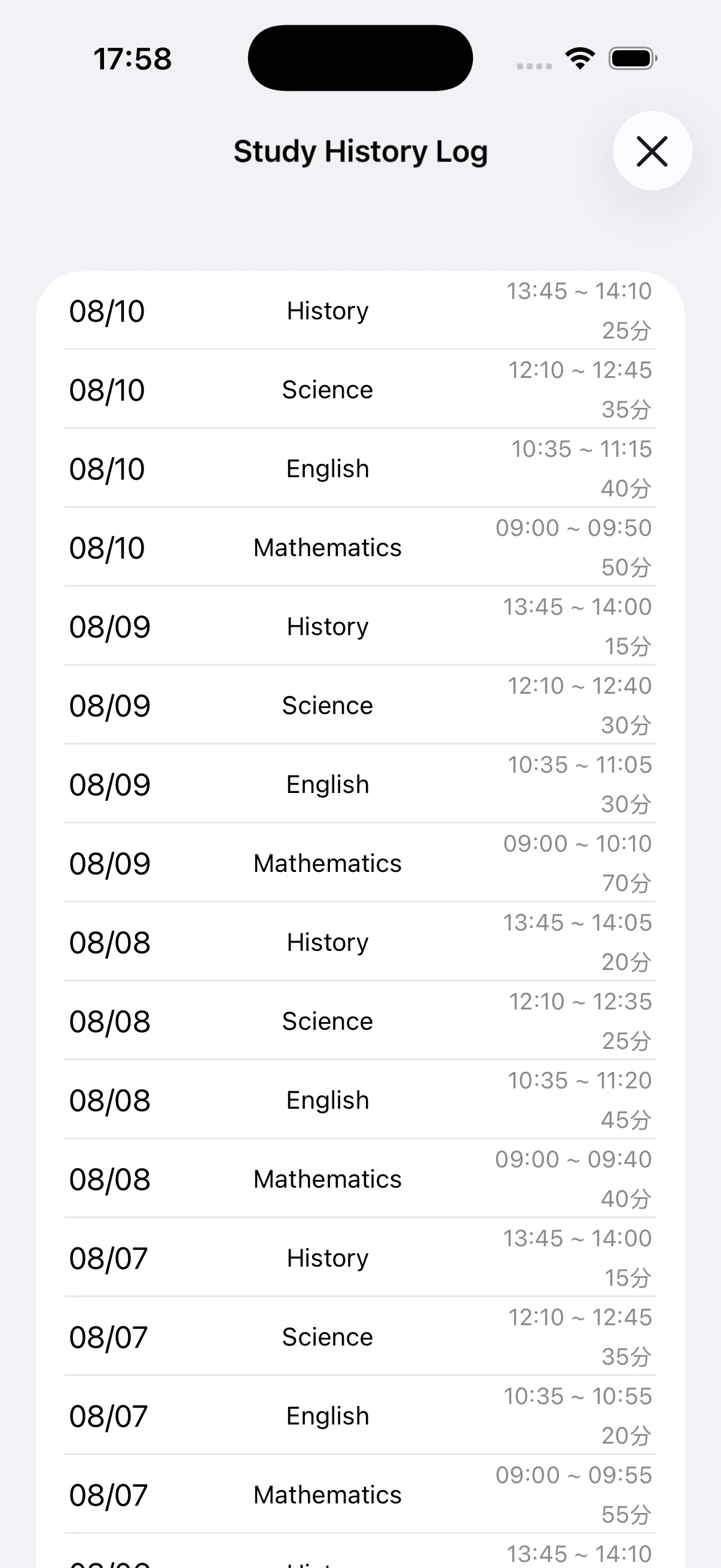
Open the history from the list button or from Study History Data in Settings. Tap an entry to edit or delete it. Use editing to correct a wrong date, subject, or duration rather than adding another record.
Back up before large cleanup work
Deleting an entry also removes its time from the charts. Confirm the target before deletion, and create a backup before cleaning up many records or changing account data.