What the app can edit
The app builds documents from row-based blocks. It is not a free-position desktop word processor and does not directly edit existing PDFs, export DOCX files, or provide cloud collaboration. To revise a saved PDF, reopen its source document and generate a new PDF.
Start with the required rows and columns
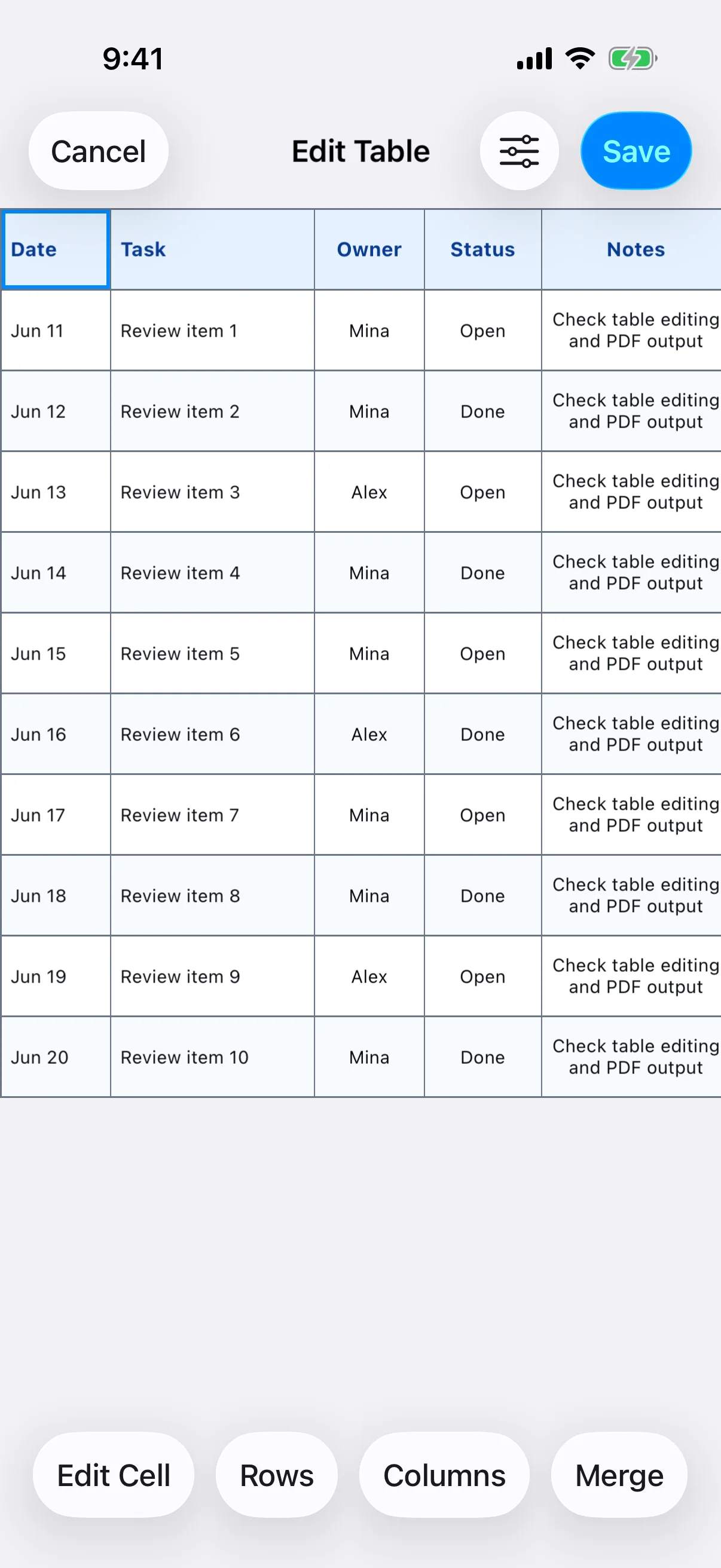
Add a table to a one-column row and choose the initial dimensions. Put field names in the top row and data below. Tables can contain up to 20 rows and 20 columns, but fewer columns are usually easier to edit on iPhone and easier to read on paper.
Edit cells, rows, columns, and merges
Enter cell text, add or remove rows and columns, and merge cells for a grouped heading. Adjust column widths and row heights to match the content. Text size, bold, italic, alignment, text and background colors, line spacing, and borders can be changed, but consistent formatting is easier to scan.
Check width and page fit in PDF Preview
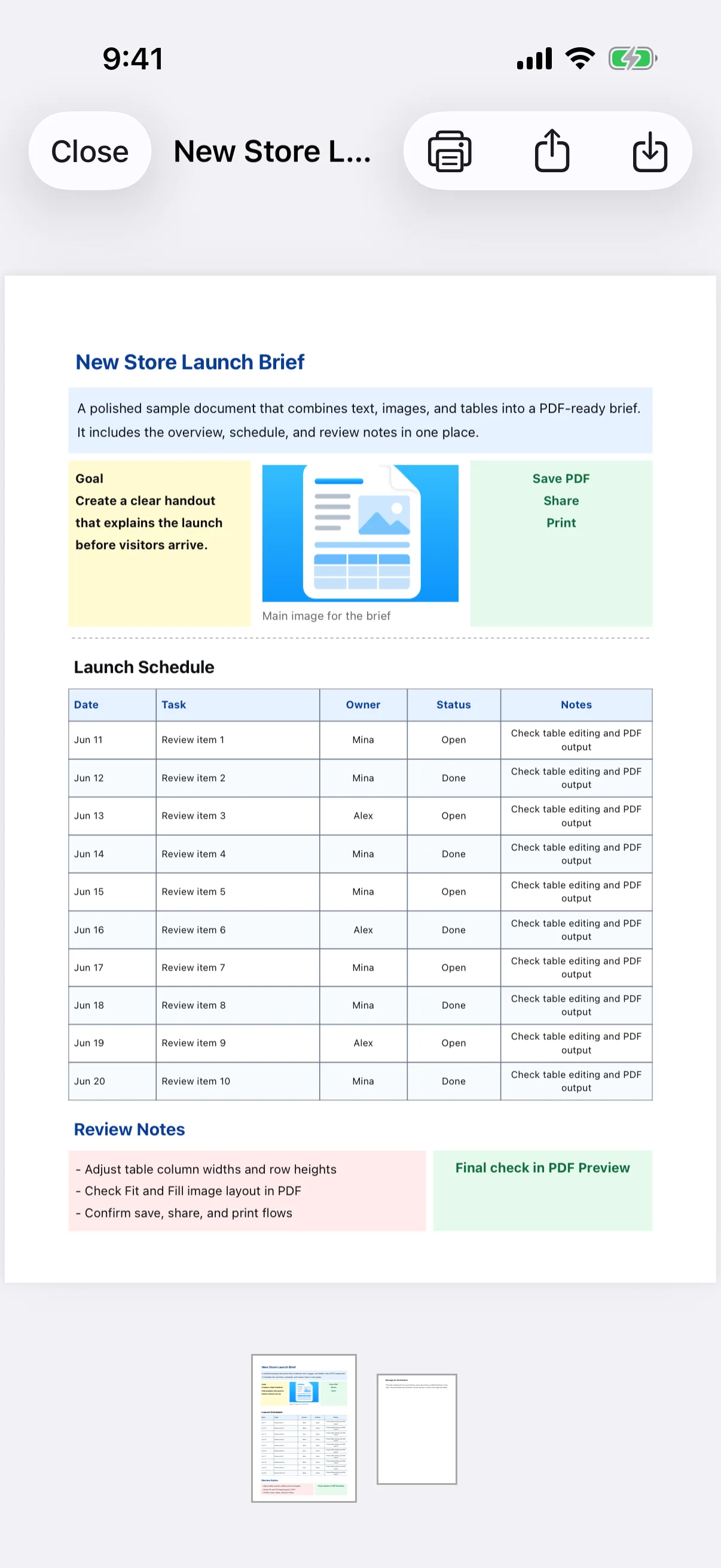
The editor is a structural preview, so review the final table in PDF Preview. Widen columns with heavy wrapping and narrow columns that contain short values. If the table still does not fit, use landscape orientation, remove unnecessary columns, or split the information into two tables.