What the app can edit
The app builds documents from row-based blocks. It is not a free-position desktop word processor and does not directly edit existing PDFs, export DOCX files, or provide cloud collaboration. To revise a saved PDF, reopen its source document and generate a new PDF.
Plan the purpose and required information
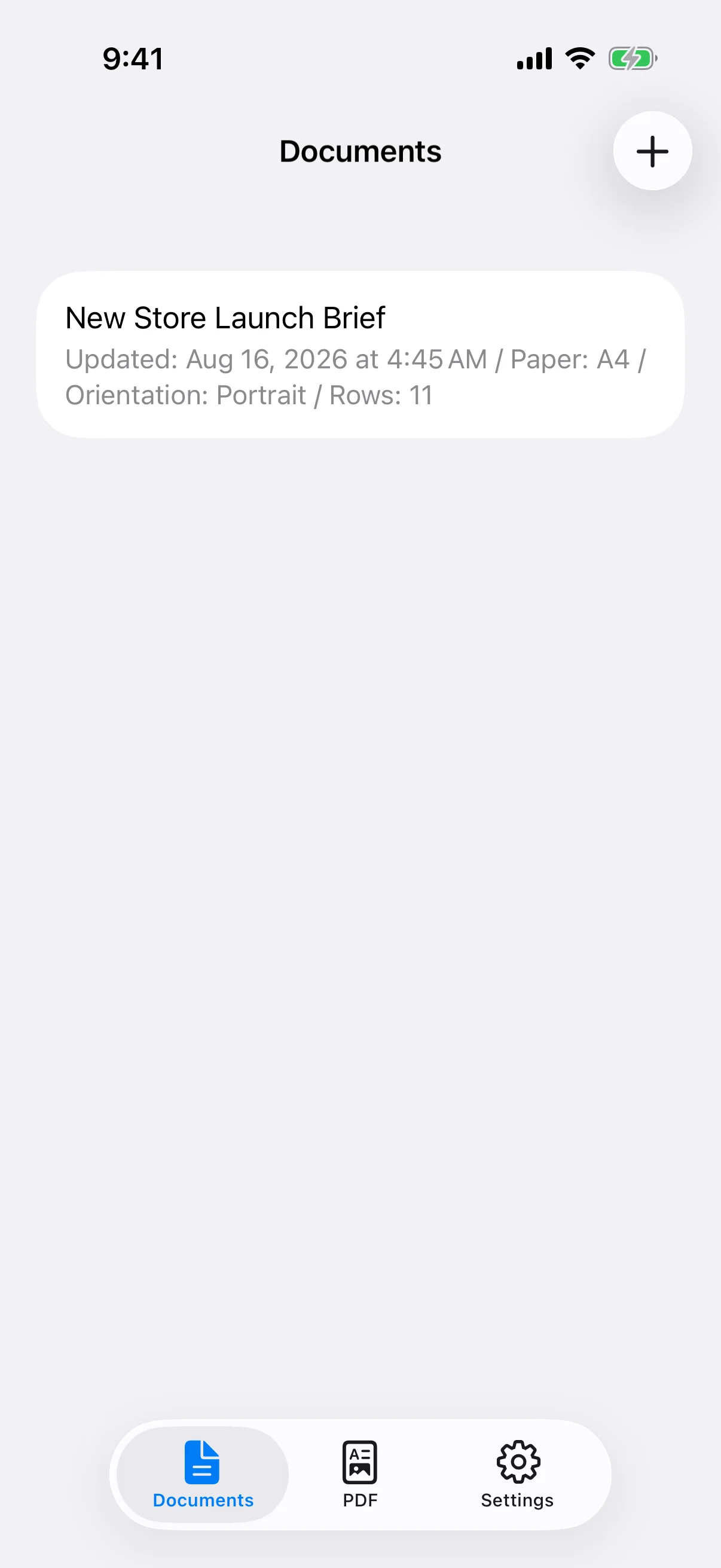
Before tapping the plus button, decide who will read the document and whether it will be printed or sent as a PDF. List the title, body text, dates, contact details, images, and tables you need. A short outline makes it easier to build the document on a phone and reduces the chance of leaving out important information.
Add text, images, and tables as rows
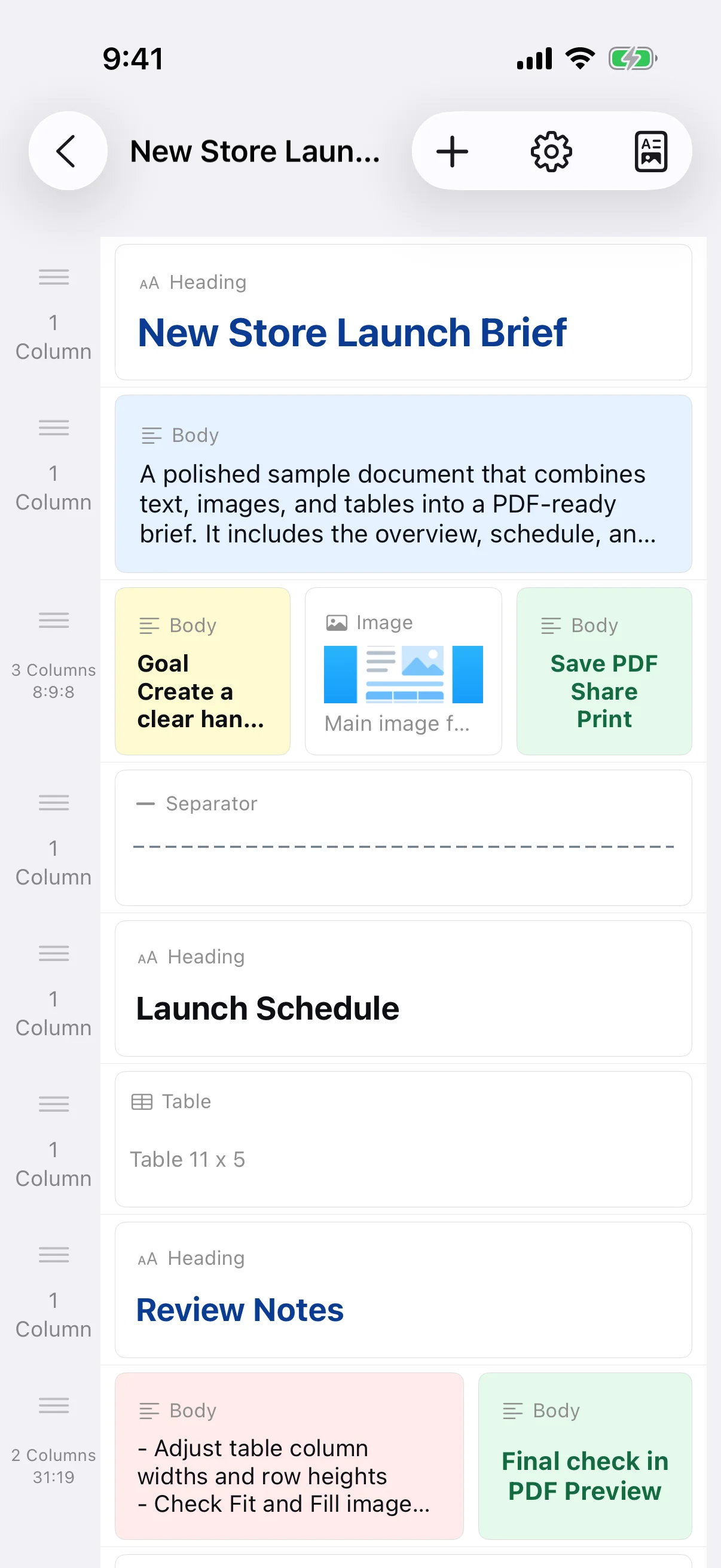
The editor organizes content as rows. Add headings, body text, images, tables, dividers, spacing, and page breaks in the order you need. A row can contain one to four columns, so an image can sit next to an explanation or several short points can appear side by side. Rows can be reordered after they are added.
Set the paper and review PDF Preview
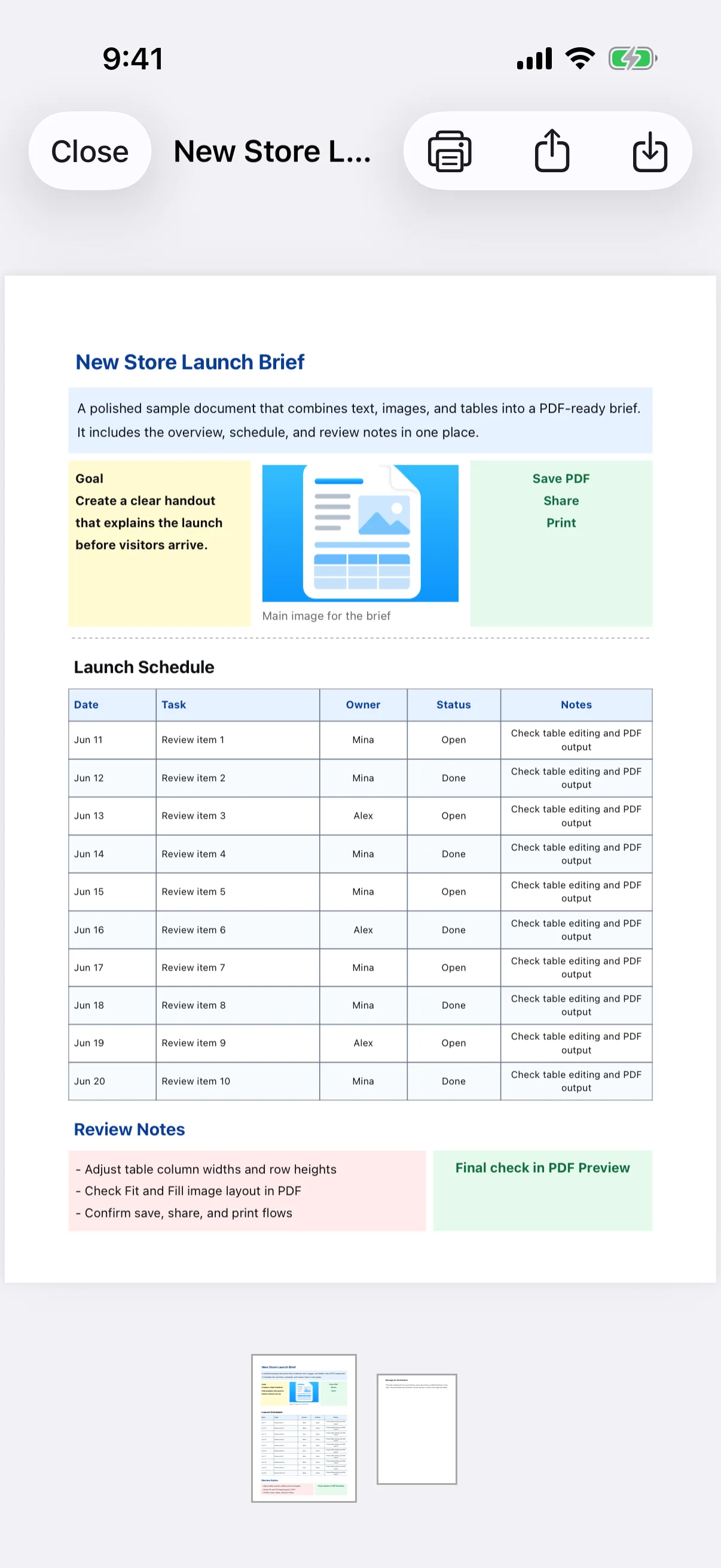
Open Document Settings to choose A4, B5, Letter, or Legal paper, portrait or landscape orientation, and page margins. Tap PDF to inspect the final pagination rather than relying only on the editor preview. Check text wrapping, image cropping, table width, page breaks, and blank pages.
Save, share, or print the PDF
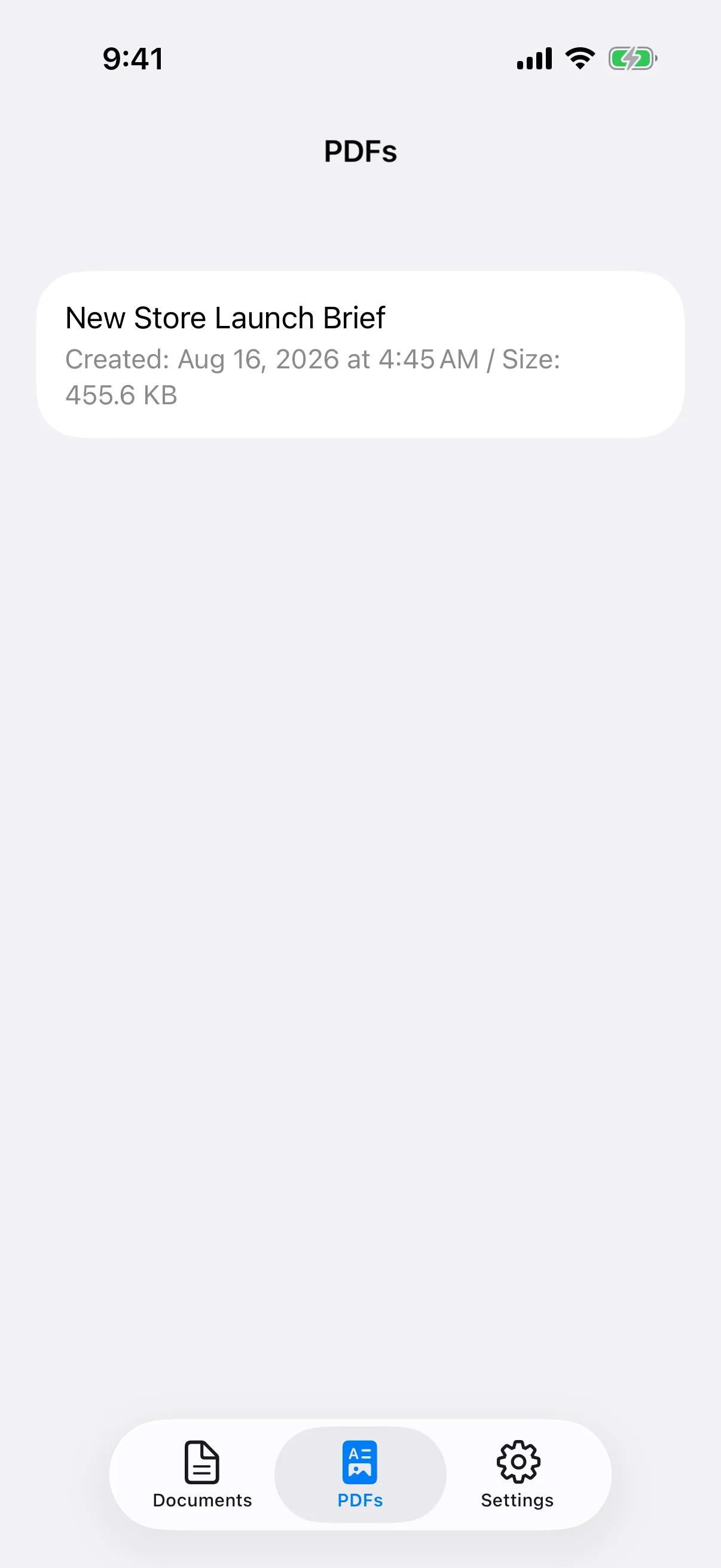
Save the generated PDF to the app, send it through the iOS share sheet, or print it with an AirPrint-compatible printer. Saved PDFs appear in the PDFs tab. A PDF is an output file rather than an editable document, so return to the source document when changes are required.