What the app can edit
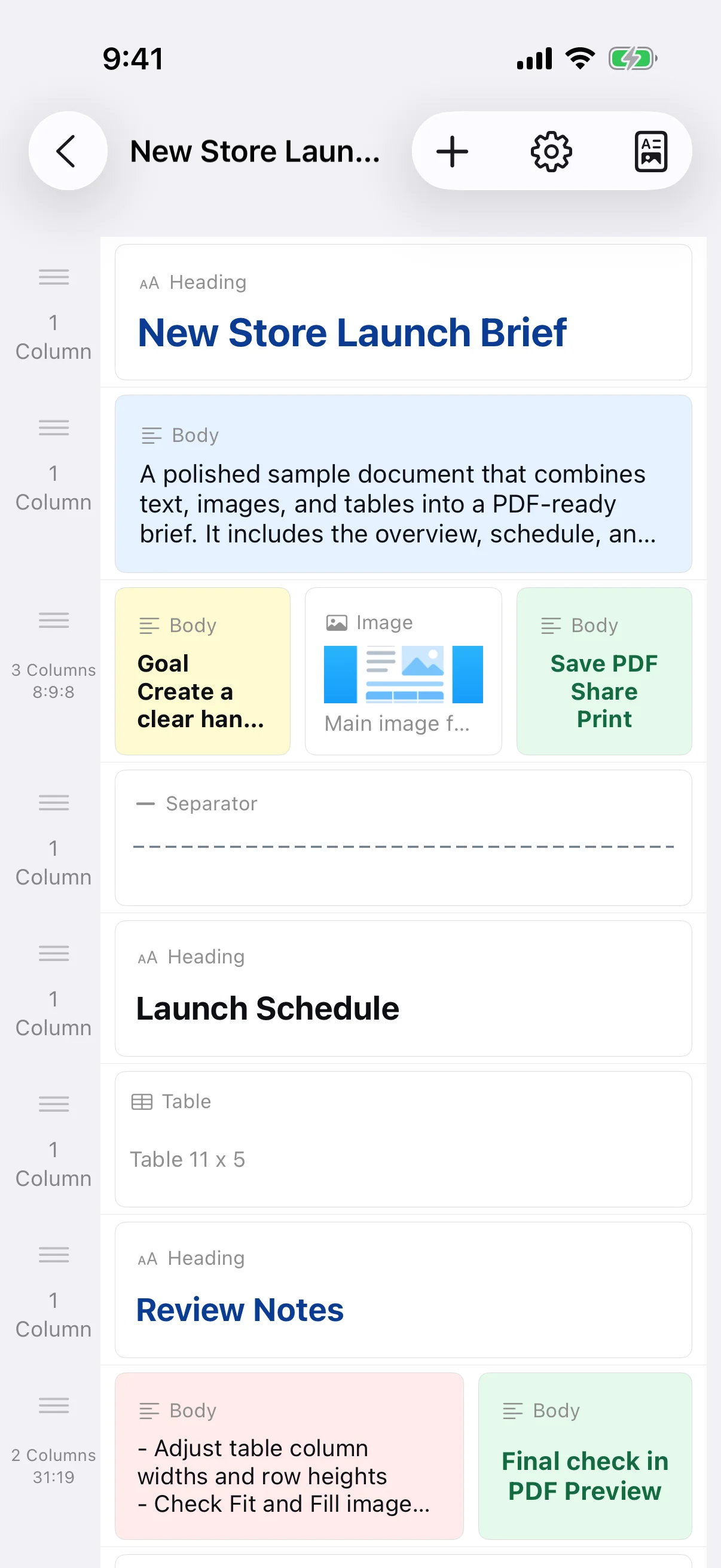
The app builds documents from row-based blocks. It is not a free-position desktop word processor and does not directly edit existing PDFs, export DOCX files, or provide cloud collaboration. To revise a saved PDF, reopen its source document and generate a new PDF.
Choose only the images the reader needs
Select relevant images from Photos and check for faces, addresses, vehicle plates, account details, or other information that should not be shared. Crop or edit sensitive areas before adding an image. Limiting the number of large images also keeps the PDF easier to store and send.
Choose image height and Fit or Fill
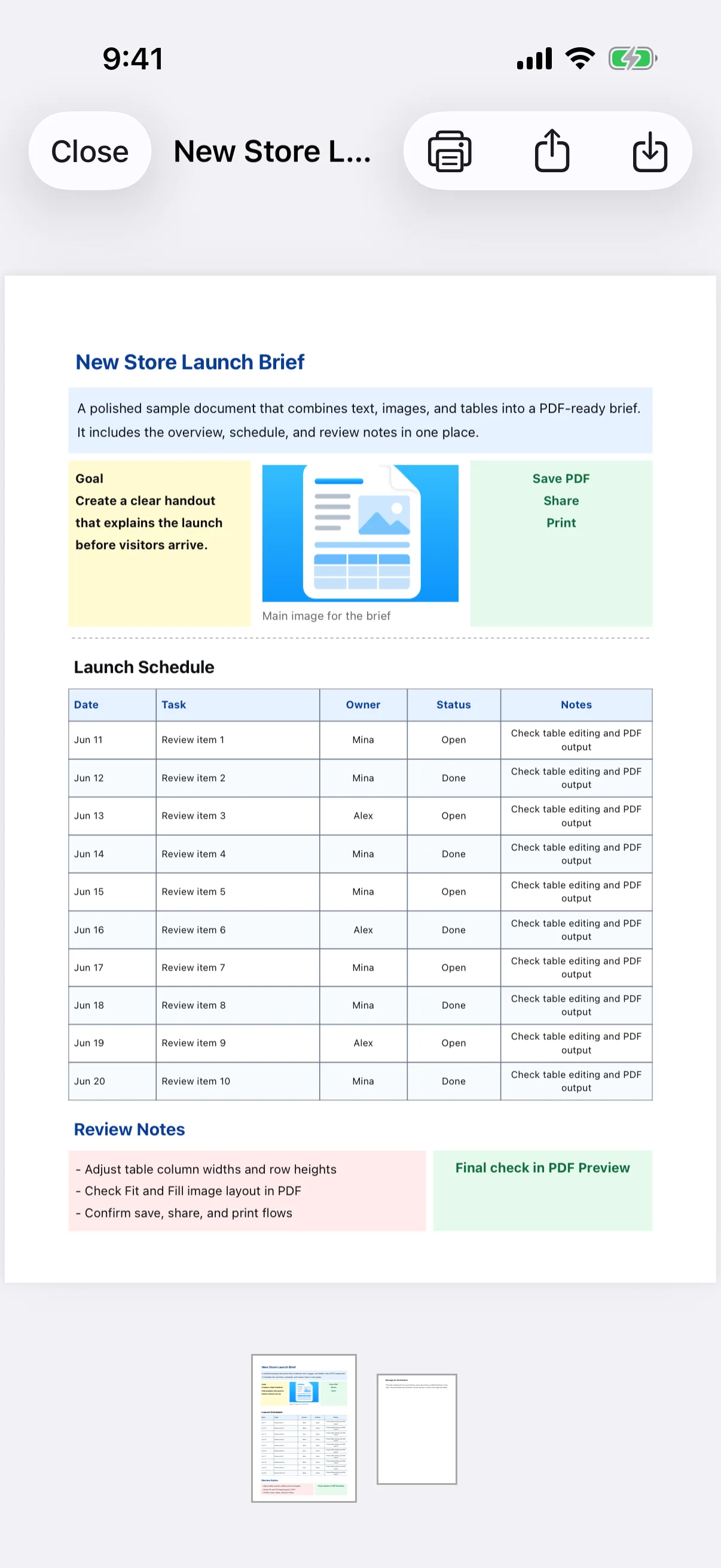
Fit is useful when the entire diagram or screenshot must remain visible. Fill can make a photo occupy its frame but may crop the edges. Adjust the image height and inspect PDF Preview to make sure labels, faces, and important details are not cut off.
Keep each image connected to its explanation
Place a heading and concise explanation before or after the image. A two-column row can put the image beside its text, but narrow columns may make body text too small. For step-by-step instructions, confirm that image order and step numbers match.