What the app can edit
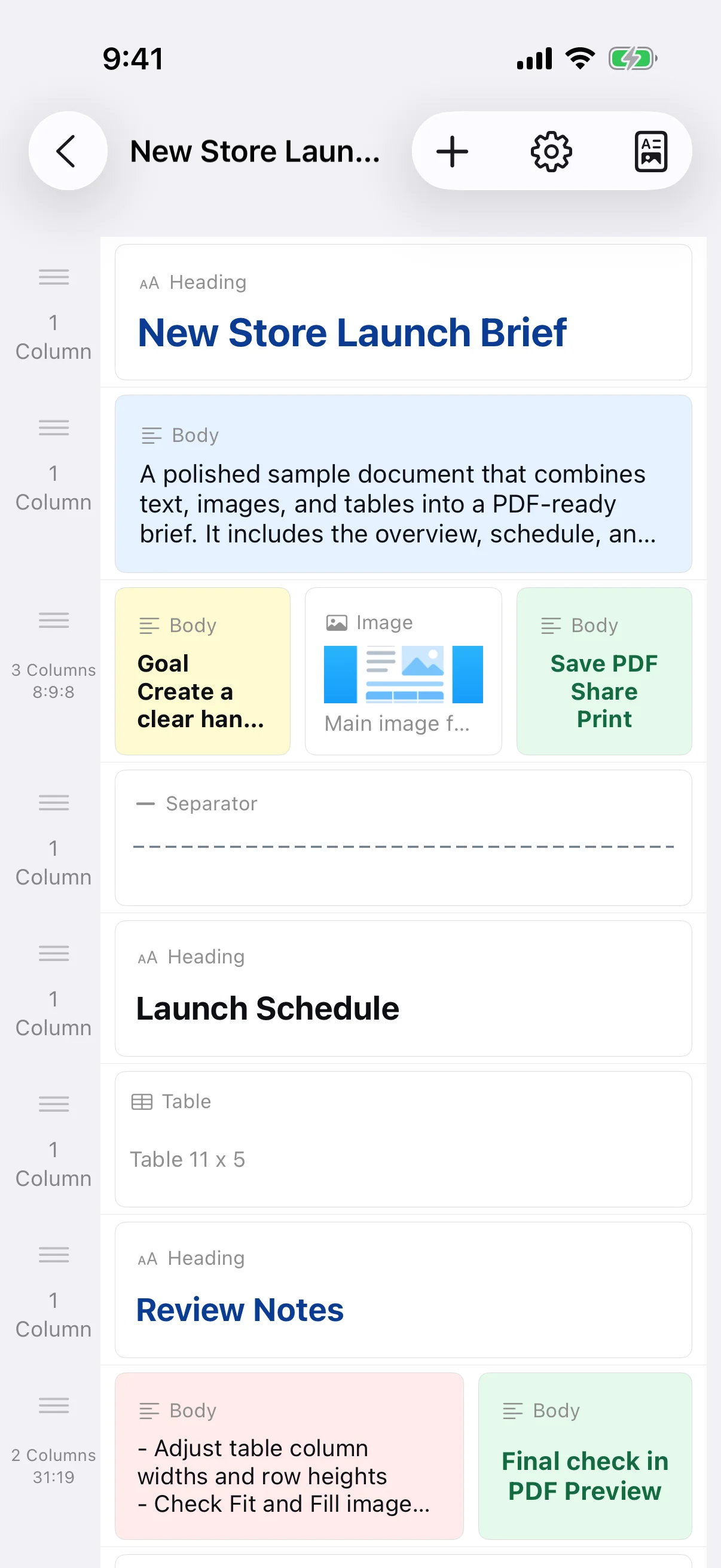
The app builds documents from row-based blocks. It is not a free-position desktop word processor and does not directly edit existing PDFs, export DOCX files, or provide cloud collaboration. To revise a saved PDF, reopen its source document and generate a new PDF.
Choose the number of columns for the content
Use one column for long text and tables, two columns for an image and explanation, and three or four columns for short points or card-like summaries. More columns mean less width per item, so they are not suitable for long paragraphs or large type.
Adjust column ratios and spacing
Columns can use equal widths or a ratio that gives more room to text or an image. Leave enough space between columns and keep similar rows aligned with the same ratios. Repeating a small set of layouts gives the document a more consistent visual rhythm.
Review at PDF and print size
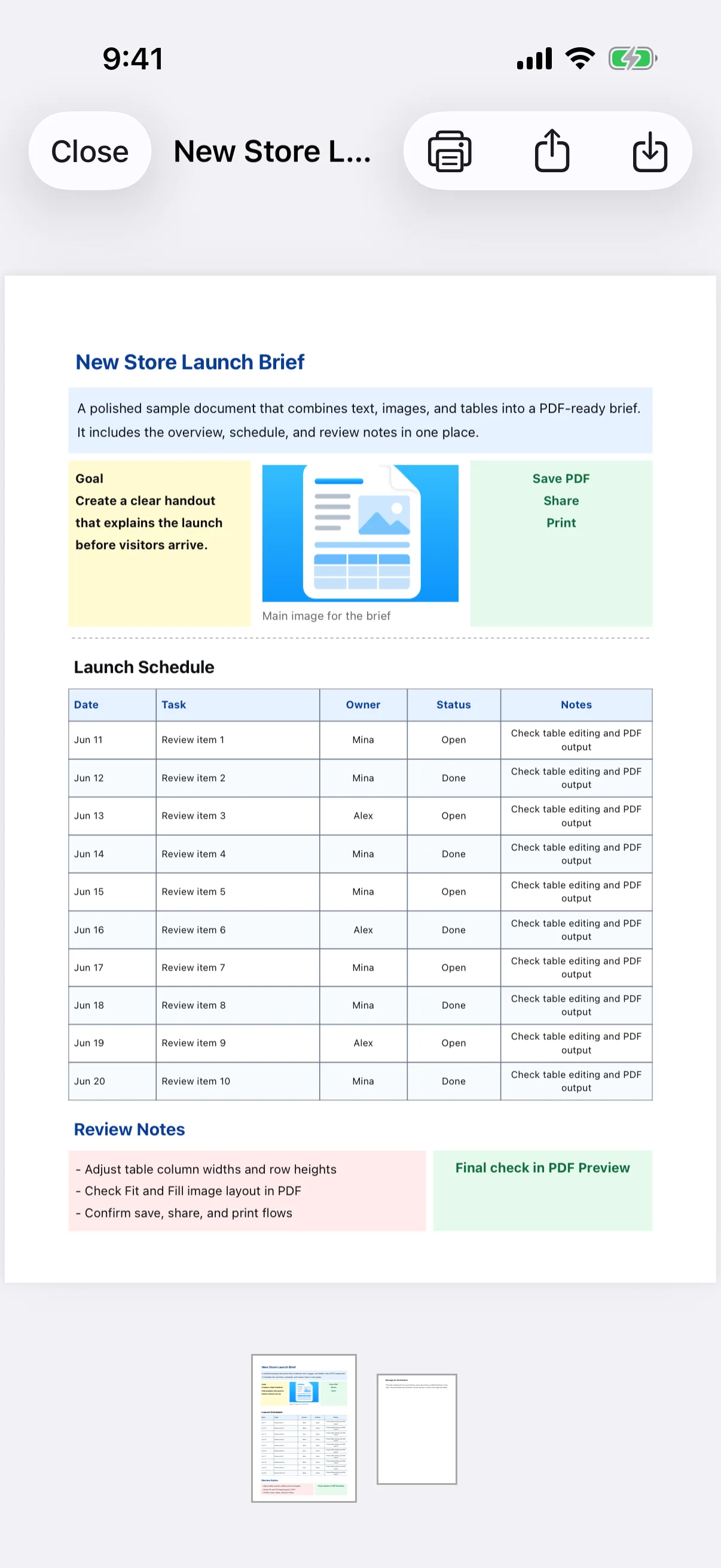
A layout that fits the editor can still feel cramped in the final PDF. Check line breaks, image cropping, spacing, and the physical size of text on the selected paper. Move detailed explanations to a full-width row when a narrow column compromises readability.